

CUSTOMER ACQUISITION AND WELCOME
AFTER-SALES FOLLOW-UP
ACTIVITY
CUSTOMER SEGMENTATION
ANIMAL SEGMENTATION
SPECIAL DATES
TOOLSDisplays a complete list of all leads.
TIPS AND INSIGHTS FROM GESPET
Did you know?
Improving communication has a direct impact on customer loyalty and creates a more satisfying user experience because:
- Builds trust: Maintaining open, accessible, and clear communication reassures customers that they can rely on your company to meet their needs, fostering long-term loyalty.
- Provides a personalized experience: Enhanced communication helps you better understand customer interests, preferences, and expectations, allowing you to tailor your offers, products, or services to be more relevant.
- Strengthens relationships: Meaningful and continuous interactions keep your business top of mind for customers without feeling intrusive, building an emotional connection that drives loyalty and positive word-of-mouth.
- Solves problems efficiently: Effective communication ensures rapid resolution of issues or questions, minimizing frustration and demonstrating your commitment to customer satisfaction. A well-handled issue often leaves a positive impression.
- Enhances user experience: Anticipating customer questions or needs and providing useful information helps them navigate the purchase or service process smoothly, leaving a lasting positive impression.
In summary, improved communication doesn’t just meet customer needs—it also strengthens relationships, fosters trust, and creates loyalty, which are crucial for long-term retention.
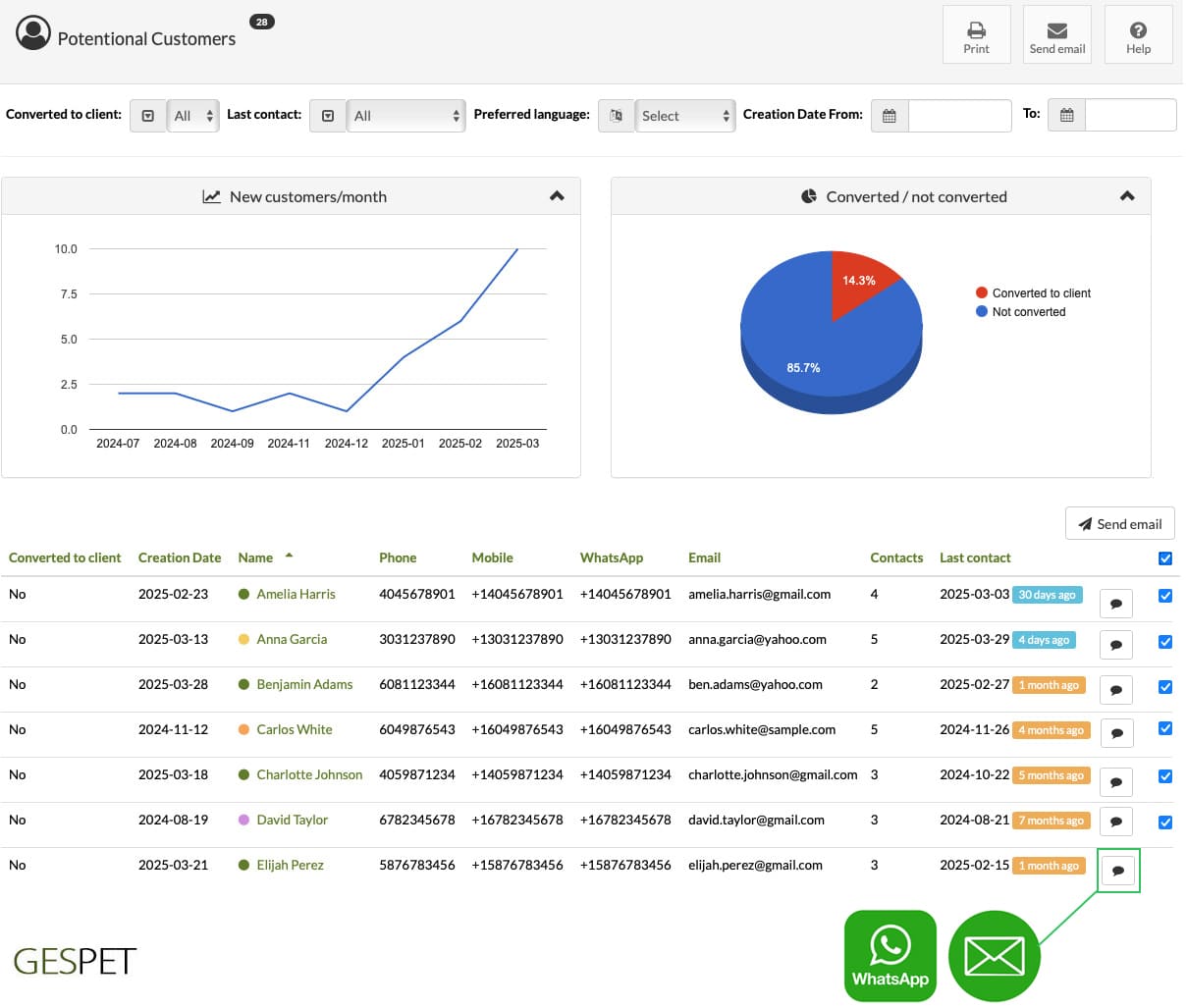
You can use filters to customize the list:
Converted to customer:
You can see all the potentials
See only those converted to "real" customers
See only those that haven't been converted
When was the last contact with this customer:
See all
Last contact was less than 1 month ago
Last contact was more than 1, 3, 6, 9, 12 months ago
Dates when you added or registered this potential customer
Preferred language of the customer
This way, you can search for example, for leads added in the last 3 months, who have not yet been converted to customers and with whom there has been no contact for over 1 month, to send them an email, for example.
The charts feature intelligent, multidimensional analytics, providing advanced data visualization from multiple perspectives. They automatically adapt to your selected filters and displayed results, revealing the insights most relevant to your analysis.
When you filter to display leads that have NOT converted into customers, the chart shows a breakdown of their interests.
However, when you filter to display leads that HAVE successfully converted into customers, the chart reveals the customers you've acquired, their distribution across business areas, and how much they've spent in each one.
Hover over any section of the chart to explore additional details and gain deeper insights into the data.
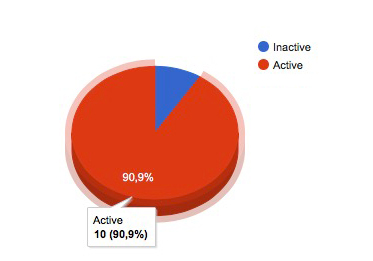
You can hide the charts at any time by collapsing the panel at the top.
You can click on the Start conversation icon to send an email or a WhatsApp message to a customer.
You can also select multiple customers to run an email campaign, meaning sending an email to several customers at the same time.
You just need to select the customers you want to send the message to and click the button
You can write the message yourself or select a template that you have
previously configured in the option Marketing > settings > your
email or WhatsApp templates.
Load the template content and make any changes you need for this
specific sending, but don’t worry because this will not modify the original
template.
In the case of mailing or sending to multiple users at the same time,
if you click on Send me a copy, you will receive a copy in
your
email.
By clicking on the customer's name or the invoice, you can open that information in a new browser tab.
You can export this information in the option Settings > Data Management.
By clicking on the , button, a .pdf file is generated that you can:
Save
Send directly by email, for example, to your marketing department.
If you select the option to receive a copy, you will receive a copy of every email sent. For example, if you send 200 emails, you will receive 200 copies, so a total of 400 emails will be sent.
Displays a list of all new customers who have been added within the selected date range.
Sending a welcome message to a new customer is a powerful way to start the relationship with a positive and professional first impression.
First impressions matter. A well-crafted welcome message:
Humanizes the relationship from the start: It makes the client feel valued, not just like another customer.
Builds trust: It reassures them they made the right choice and conveys professionalism and reliability.
Highlights your value: It's a great opportunity to remind them of your services, opening hours, benefits, or contact details.
Encourages future engagement: A clear and friendly message increases the likelihood that they will return and recommend your business.
A thoughtful welcome is more than courtesy - it's the first step toward long-term customer loyalty.
If you hover over the chart, you will see expanded information for each data segment.
Hide them:
You can hide or collapse them by clicking the icon
You can click on the Start conversation icon to send a welcome message by email or WhatsApp to that customer.
You can also select multiple entries to create an email campaign, that is, send one email to multiple customers at the same time.
You just need to select the customers you want to send it to and click the button
By default, the template from the ones you have
previously configured in the option Marketing > Settings >
one-off email or WhatsApp templates. of the type
Welcome
will appear.
It loads the content of the template and you can make any changes
you
need for this send, but do not worry because this will not modify
the original template.
In the case of a mailing or sending to multiple users at the same time, if
you click
on Send me a copy, you will receive a copy in your
email.
Clicking on the pet’s name will open its record in a new browser tab.
When you click the button, a .pdf file is generated that you can:
Save
Send directly by email, for example to the accounting department.
If you select the option to receive a copy, you will receive a copy of every email sent. For example, if you send 200 emails, you will receive 200 copies, so a total of 400 emails will be sent.
Stay in touch after each stay: thank clients for their trust, ask about their experience and encourage them to book again.
Make a great stay the start of the next one.
After checkout, a personal message lets you thank clients for their trust, hear how things went once their pet was home and stay in touch with the family.
Imagine being able to:
Hear about their experience and listen to suggestions that can help you improve.
Invite them to leave a review if they were happy with the stay.
Remind them they can count on you for their next holiday or short break.
Referring to the stay they have just enjoyed makes your message more personal. That small gesture can build trust and encourage another booking.
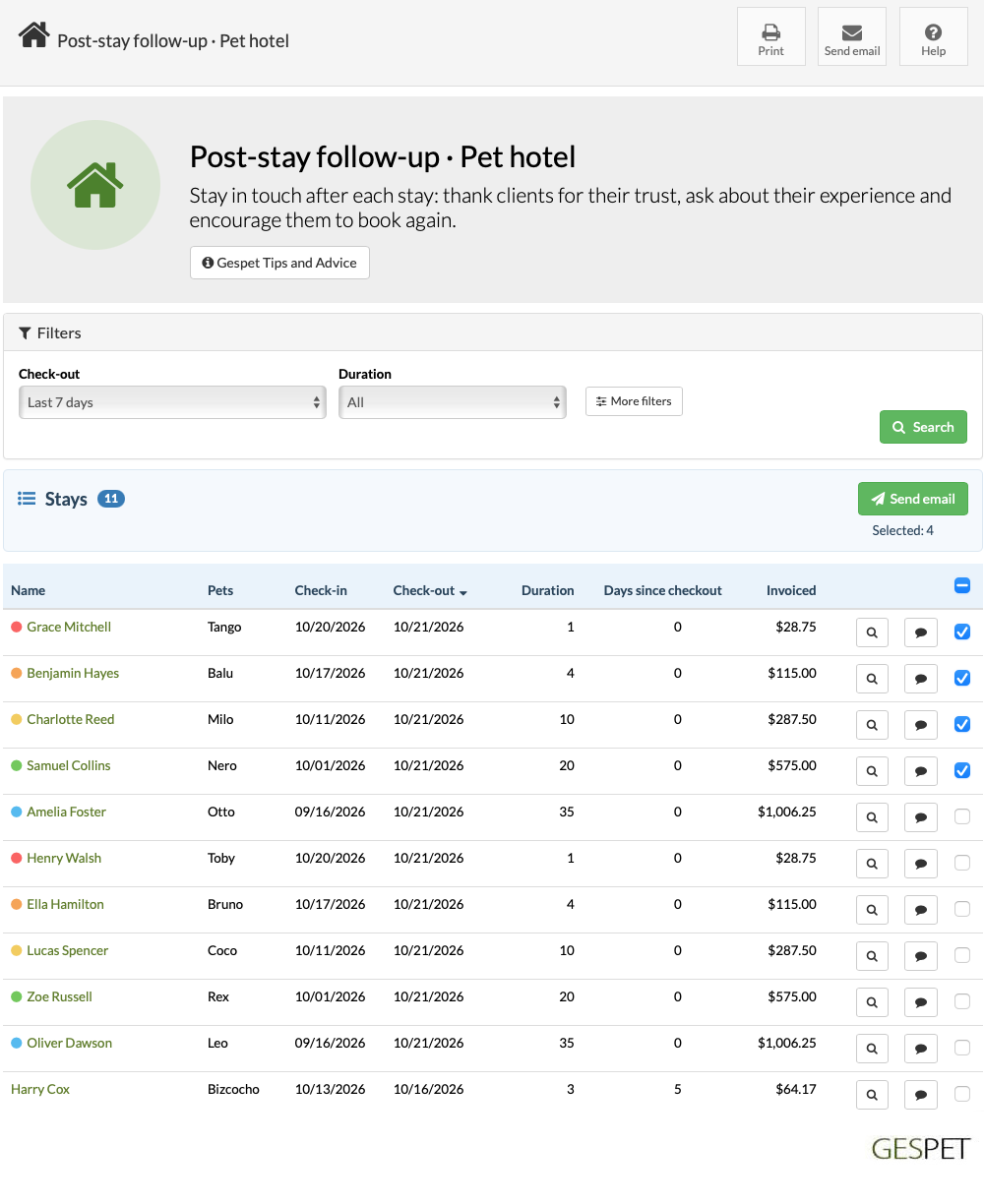
Choose which stays to view:
Check-out: choose when the stays ended. By default, the report shows the last 7 days, including today.
Custom date: enter the From and To dates to view a different period. Both dates are included.
Duration: filter by the number of days each stay lasted, for example to contact customers after a short stay or a longer holiday.
Under More filters you can refine the search by:
Preferred language: the customer's communication language.
Status: all, active or inactive. Active customers are shown by default.
Accepts marketing messages: all, yes or no.
Click Search to apply the filters and update the list.
Completed stays with a check-out date within the selected period are shown, even if they have not yet been invoiced.
Reservations and stays that are still open are not shown.
The Invoiced field shows the amount invoiced for each stay.
You can message one customer using their contact icon, or select several stays and click .
If the list spans several pages, the header checkbox lets you select stays on this page or on all pages. If you select several stays for the same customer, they will receive an email for each selected stay.
Stays for customers without an email address cannot be selected for an email campaign. If no other contact channel is available, the direct message icon is disabled.
When you open the email form, you can write a message or use a template
configured under Marketing > Settings > Email templates >
Your email templates.
If you choose to receive a copy, you will get one for each email sent. Sending to all pages uses the filters from the last completed search.
You can sort the list by clicking column headings that support sorting.
The report shows up to 100 stays per page. If the search returns more than 100 results, use pagination to view the following pages.
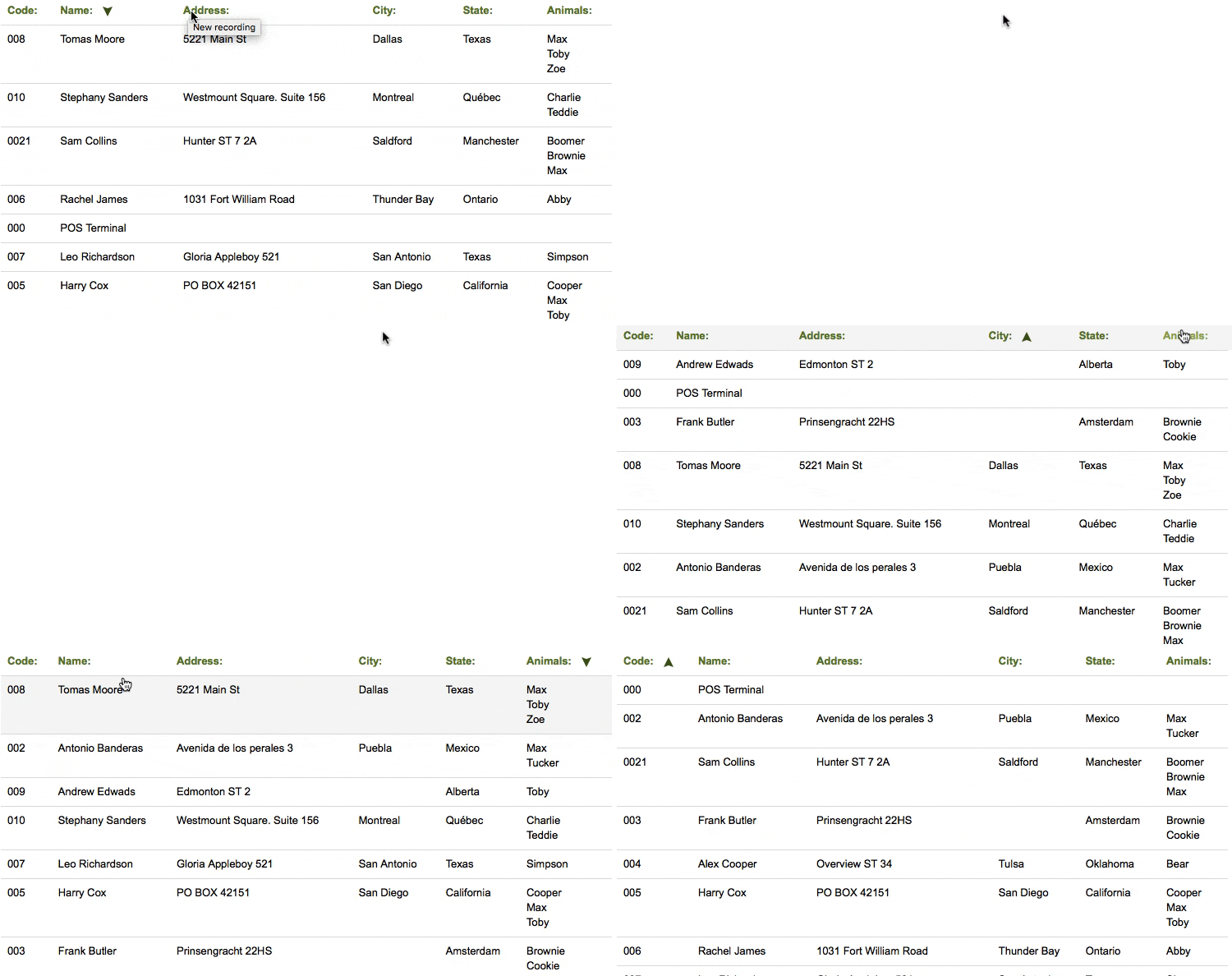
Click a customer’s name to open their record.
View the pets for each stay, the check-in and check-out dates, the duration and the days since checkout. These details help you write a message relevant to their visit.
Days since checkout: days are counted up to the search’s To date. For a past period, the calculation uses the end of that period as its reference.
If a customer has several stays during the period, you can view and select each one separately.
Click to generate a PDF that you can:
Save.
Print.
Send by email as an attachment.
The PDF and email campaigns use the filters from the last completed search, even if you have changed a form field without searching again.
Turn a great day at daycare into a lasting relationship with each family.
A message after a daycare visit lets you find out how the pet is doing back at home and stay in touch with their family.
Ideas for your follow-up:
Contact recent visitors to find out how their pet settled back in at home.
Use arrival times and visit length to personalise your message and learn what they valued most about your service.
Invite them to book another day or plan regular visits around their needs.
Refer to that visit and ask what the family needs. A personal conversation can help them plan their next visits.
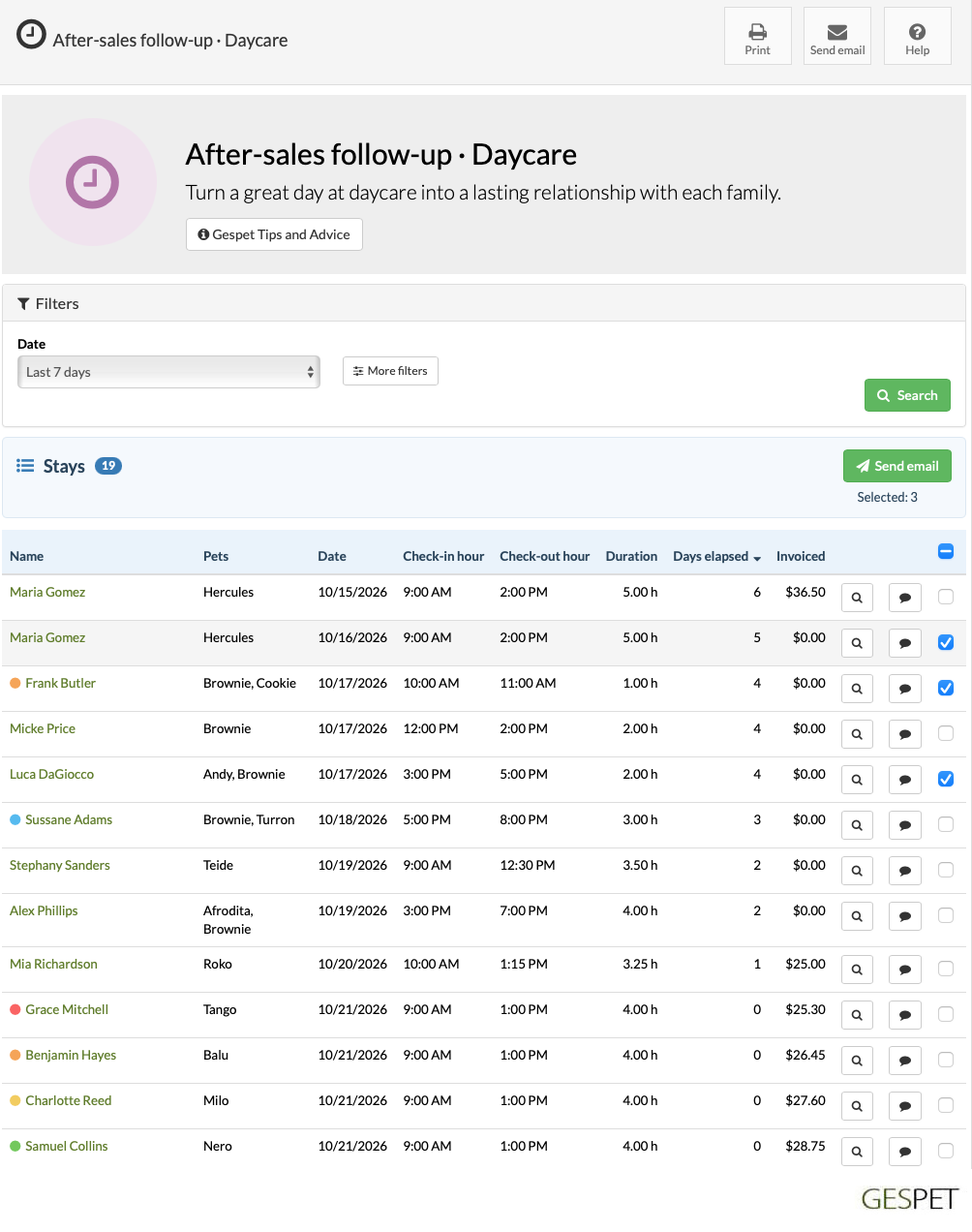
Choose what to view:
Period: choose the period you want to review. The default is the last 7 days, including today.
Custom date: enter the From and To dates. Both dates are included and the range cannot exceed one year.
The To date cannot be later than today.
Under More filters you can refine the search by:
Preferred language: the customer's communication language.
Status: all, active or inactive. Active customers are shown by default.
Accepts marketing messages: all, yes or no.
Click Search to apply the filters and update the list.
Your last search filters are saved for this browser session. You can open a customer’s record and return to the report without selecting them again.
Completed daycare visits within the selected period are shown.
Bookings and visits that are still open or cancelled are excluded.
You can message a customer using their contact icon, or select several results and click .
If the list spans several pages, the header checkbox lets you select results on this page or on all pages. If you select several for the same customer, they will receive an email for each one.
Results for customers without an email address cannot be selected for an email campaign. If no other contact channel is available, the direct message icon is disabled.
When you open the email form, you can write a message or use a template
configured under Marketing > Settings > Email templates >
Your email templates.
If you choose to receive a copy, you will get one for each email sent. Sending to all pages uses the filters from the last completed search.
You can sort the list by clicking column headings that support sorting.
The report shows up to 100 results per page. If the search returns more than 100 results, use pagination to view the following pages.
View the pets for each daycare visit, the date and the days elapsed to write a message relevant to that visit.
The list includes the recorded arrival or start time and departure or end time. Duration is shown in hours: 1.50 h means one and a half hours. If a time is missing or the end precedes the start, duration shows “—”.
Invoiced shows the total, including tax, of the current invoice linked to the document. It shows 0 if no invoice has been issued; it is neither the amount paid nor the outstanding balance.
Days elapsed is calculated up to the search’s To date.
Click to generate a PDF that you can:
Save.
Print.
Send by email as an attachment.
The PDF and email campaigns use the filters from the last completed search, even if you have changed a form field without searching again.
Help clients maintain the results of their grooming appointment and plan their next visit.
A message after a bath or trim lets you hear what the client thought and help them care for their pet’s coat between appointments.
Ideas for your follow-up:
Filter by service to share aftercare tips suited to the bath, trim or treatment their pet received.
Ask whether the result met their expectations: addressing a concern early helps build trust.
Use the time since their visit to suggest the next appointment when it suits their pet.
Mention the service their pet received and share a useful care tip. This can build trust and make it easier to arrange the next appointment.
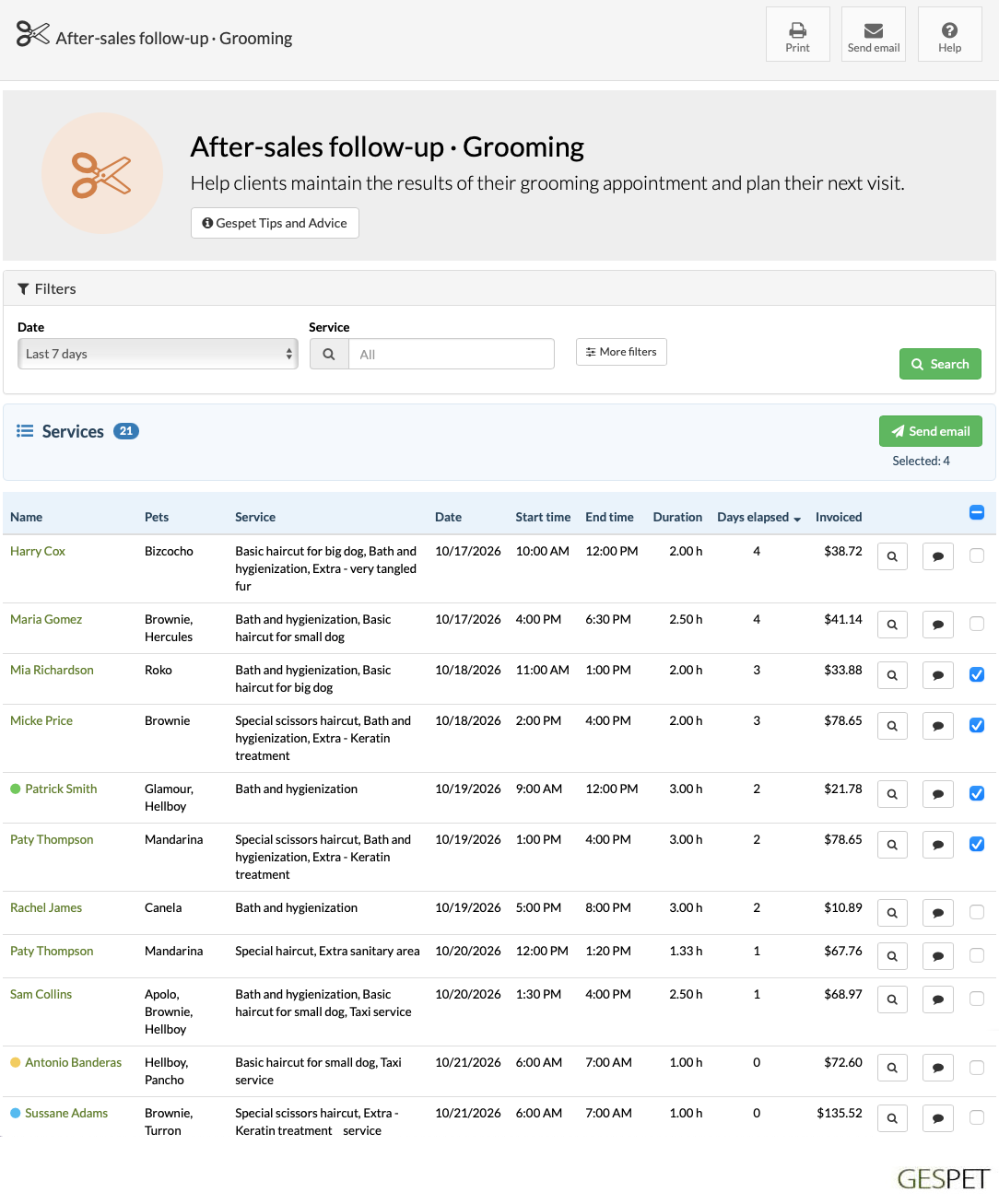
Choose what to view:
Period: choose the period you want to review. The default is the last 7 days, including today.
Custom date: enter the From and To dates. Both dates are included and the range cannot exceed one year.
Service: choose a specific service to find records that include it.
Search for and select a specific service to filter the results. All services are included by default.
The To date cannot be later than today.
Under More filters you can refine the search by:
Preferred language: the customer's communication language.
Status: all, active or inactive. Active customers are shown by default.
Accepts marketing messages: all, yes or no.
Click Search to apply the filters and update the list.
Your last search filters are saved for this browser session. You can open a customer’s record and return to the report without selecting them again.
Completed and invoiced grooming services within the selected period are shown.
Pending and cancelled services are excluded.
You can message a customer using their contact icon, or select several results and click .
If the list spans several pages, the header checkbox lets you select results on this page or on all pages. If you select several for the same customer, they will receive an email for each one.
Results for customers without an email address cannot be selected for an email campaign. If no other contact channel is available, the direct message icon is disabled.
When you open the email form, you can write a message or use a template
configured under Marketing > Settings > Email templates >
Your email templates.
If you choose to receive a copy, you will get one for each email sent. Sending to all pages uses the filters from the last completed search.
You can sort the list by clicking column headings that support sorting.
The report shows up to 100 results per page. If the search returns more than 100 results, use pagination to view the following pages.
View the pets, services provided, date and days elapsed to personalise your follow-up.
The list includes the recorded arrival or start time and departure or end time. Duration is shown in hours: 1.50 h means one and a half hours. If a time is missing or the end precedes the start, duration shows “—”.
Invoiced shows the total, including tax, of the current invoice linked to the document. It shows 0 if no invoice has been issued; it is neither the amount paid nor the outstanding balance.
Days elapsed is calculated up to the search’s To date.
Click to generate a PDF that you can:
Save.
Print.
Send by email as an attachment.
The PDF and email campaigns use the filters from the last completed search, even if you have changed a form field without searching again.
Keep learning going and help families make progress after a session or course.
A message after a session or course lets you find out how practice at home is going and help families build on what they have learned.
Ideas for your follow-up:
Filter by service or course to reach families working towards similar goals.
Ask how practice at home is going and what they find difficult, so you can guide their next step.
After a course, offer a refresher session or further training suited to their progress.
Refer to the exercises you worked on and suggest a next step that suits their progress. This helps families stay motivated and keep learning.
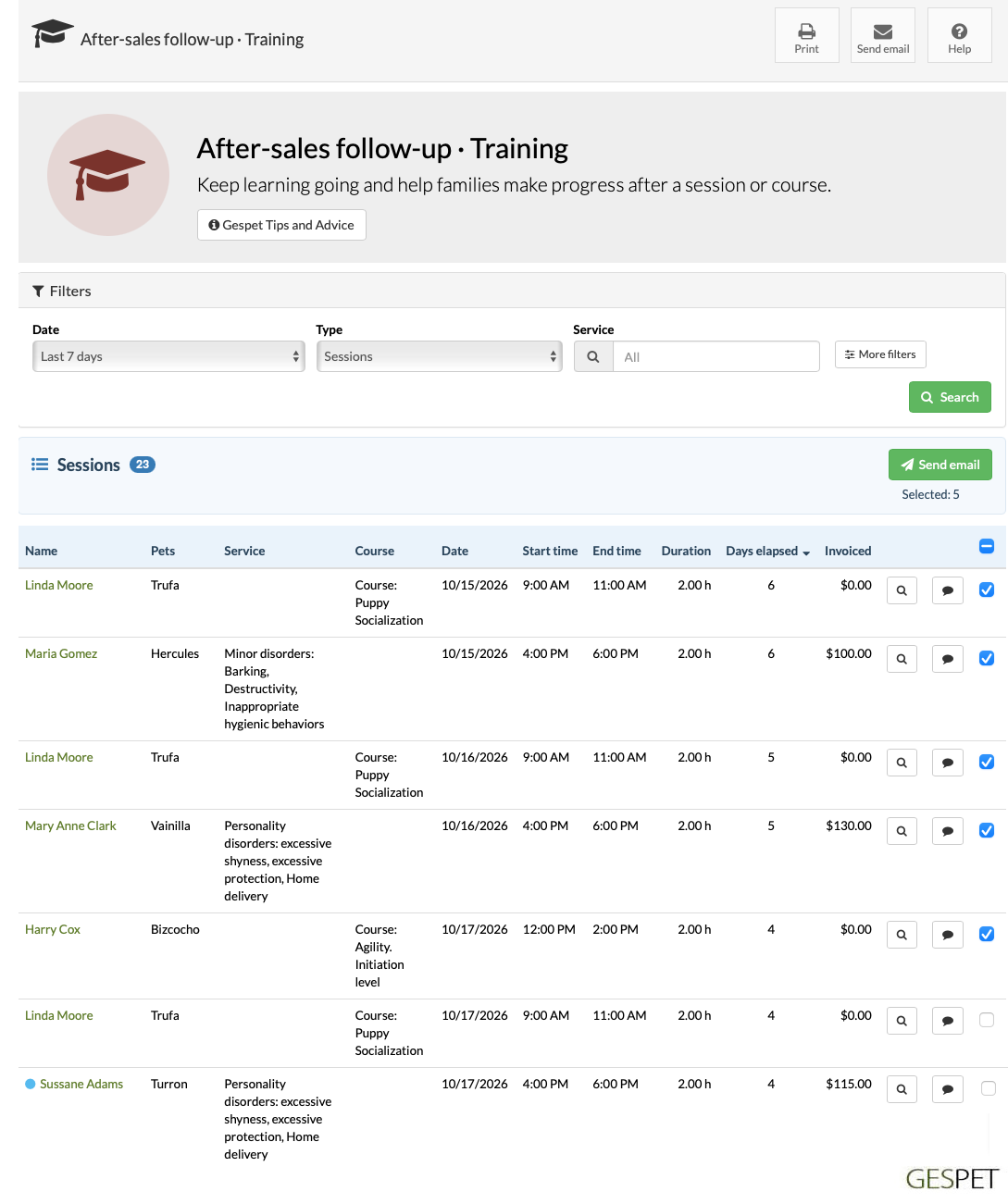
Choose what to view:
Period: choose the period you want to review. The default is the last 7 days, including today.
Custom date: enter the From and To dates. Both dates are included and the range cannot exceed one year.
Type: choose Sessions or Courses. Filter by a service in Sessions or by a course from your catalogue in Courses. Click Search to apply the mode change.
Search for and select a specific service or course to filter the results. All are included by default.
The To date cannot be later than today.
Under More filters you can refine the search by:
Preferred language: the customer's communication language.
Status: all, active or inactive. Active customers are shown by default.
Accepts marketing messages: all, yes or no.
Click Search to apply the filters and update the list.
Your last search filters are saved for this browser session. You can open a customer’s record and return to the report without selecting them again.
Sessions shows completed services, including sessions from courses that are still open.
Courses shows only finished courses, even if they have not been invoiced.
The completion date comes from the last completed session; courses with no completed sessions are excluded.
You can message a customer using their contact icon, or select several results and click .
If the list spans several pages, the header checkbox lets you select results on this page or on all pages. If you select several for the same customer, they will receive an email for each one.
Results for customers without an email address cannot be selected for an email campaign. If no other contact channel is available, the direct message icon is disabled.
When you open the email form, you can write a message or use a template
configured under Marketing > Settings > Email templates >
Your email templates.
If you choose to receive a copy, you will get one for each email sent. Sending to all pages uses the filters from the last completed search.
You can sort the list by clicking column headings that support sorting.
The report shows up to 100 results per page. If the search returns more than 100 results, use pagination to view the following pages.
View the pets and context for each session or course.
Sessions also shows the course they belong to, where applicable.
The list includes the recorded arrival or start time and departure or end time. Duration is shown in hours: 1.50 h means one and a half hours. If a time is missing or the end precedes the start, duration shows “—”.
For Courses, Start and End show the date and time of the first and last completed sessions. Duration adds up session hours, not the time between those dates; if any session lacks valid times, “—” is shown.
Invoiced shows the total, including tax, of the current invoice linked to the document. It shows 0 if no invoice has been issued; it is neither the amount paid nor the outstanding balance.
Days elapsed is calculated up to the search’s To date.
Click to generate a PDF that you can:
Save.
Print.
Send by email as an attachment.
The PDF and email campaigns use the filters from the last completed search, even if you have changed a form field without searching again.
Stay in touch after consultations and help families continue their pet’s care.
A friendly message after a consultation gives families a chance to tell you how their pet is doing and ask about the advice they received.
Ideas for your follow-up:
Find visits within a period or for a specific service to make your follow-up relevant.
Ask how their pet is doing and offer a way to discuss questions with the veterinary team.
Remind families of agreed check-ups and the vet’s instructions to help them follow the care plan.
Refer to the consultation and offer help from the veterinary team. Staying in touch can help families follow the advice and attend agreed check-ups.
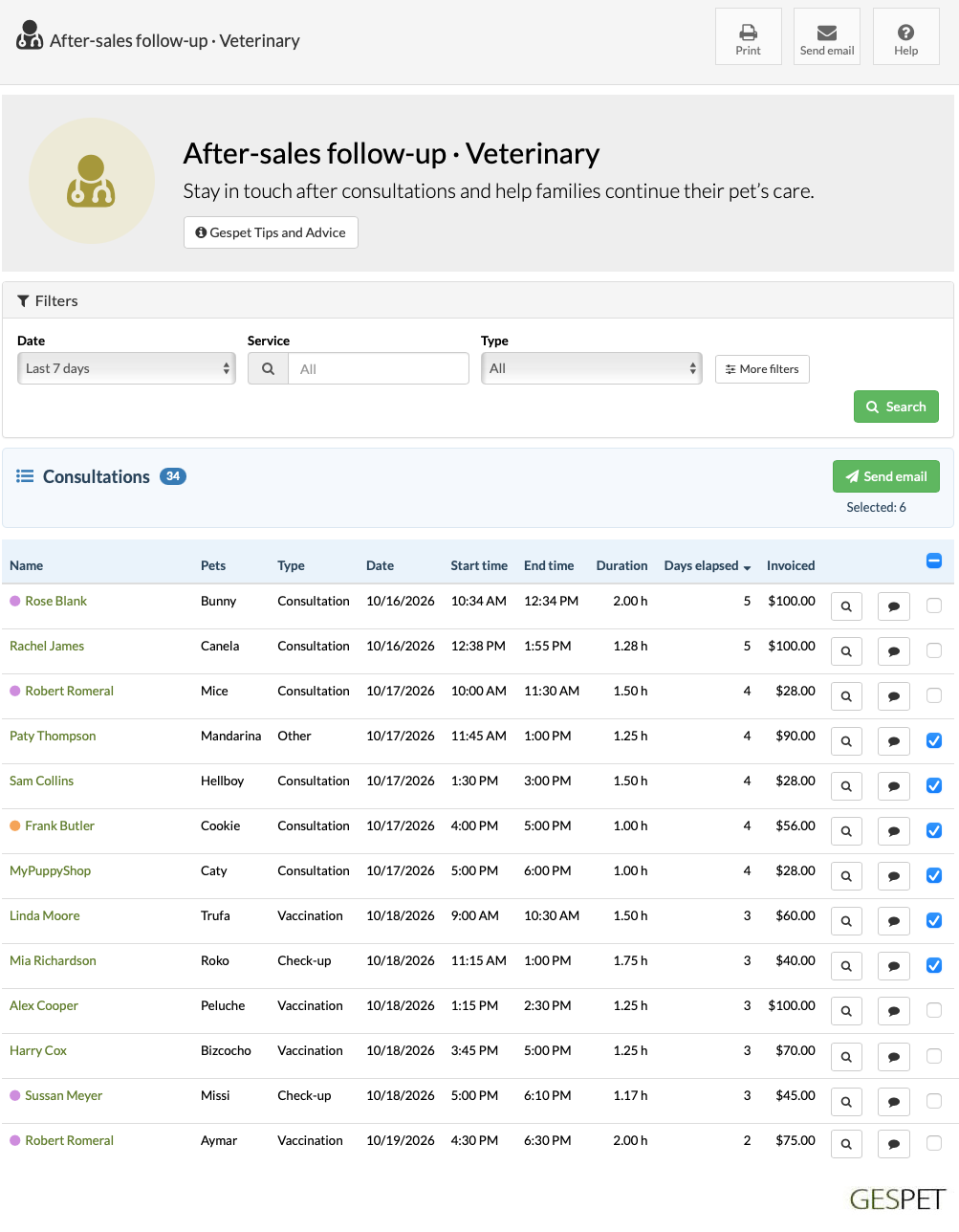
Choose what to view:
Period: choose the period you want to review. The default is the last 7 days, including today.
Custom date: enter the From and To dates. Both dates are included and the range cannot exceed one year.
Service: choose a specific service to find records that include it.
Type: you can combine the consultation type with the service provided. A consultation must match both filters.
Search for and select a specific service to filter the results. All services are included by default.
The To date cannot be later than today.
Under More filters you can refine the search by:
Preferred language: the customer's communication language.
Status: all, active or inactive. Active customers are shown by default.
Accepts marketing messages: all, yes or no.
Click Search to apply the filters and update the list.
Your last search filters are saved for this browser session. You can open a customer’s record and return to the report without selecting them again.
Completed consultations within the selected period are shown, whether invoiced or not.
Open consultations are excluded.
You can message a customer using their contact icon, or select several results and click .
If the list spans several pages, the header checkbox lets you select results on this page or on all pages. If you select several for the same customer, they will receive an email for each one.
Results for customers without an email address cannot be selected for an email campaign. If no other contact channel is available, the direct message icon is disabled.
When you open the email form, you can write a message or use a template
configured under Marketing > Settings > Email templates >
Your email templates.
If you choose to receive a copy, you will get one for each email sent. Sending to all pages uses the filters from the last completed search.
You can sort the list by clicking column headings that support sorting.
The report shows up to 100 results per page. If the search returns more than 100 results, use pagination to view the following pages.
View the pets, consultation type, date and days elapsed.
The report does not add clinical notes to messages.
The list includes the recorded arrival or start time and departure or end time. Duration is shown in hours: 1.50 h means one and a half hours. If a time is missing or the end precedes the start, duration shows “—”.
Invoiced shows the total, including tax, of the current invoice linked to the document. It shows 0 if no invoice has been issued; it is neither the amount paid nor the outstanding balance.
Days elapsed is calculated up to the search’s To date.
Click to generate a PDF that you can:
Save.
Print.
Send by email as an attachment.
The PDF and email campaigns use the filters from the last completed search, even if you have changed a form field without searching again.
Turn a purchase into an opportunity to offer useful advice and encourage future visits.
A message after a purchase lets you find out whether the products met the client’s needs and help with any questions about using them.
Ideas for your follow-up:
Search by product or category to contact clients with a shared need.
Ask how their purchase is working out and help with questions about using it.
Depending on the time elapsed, suggest a repeat purchase or a complementary product they may find useful.
Mention the products they bought and recommend only what they may find useful. Helpful advice can build trust and encourage another visit.
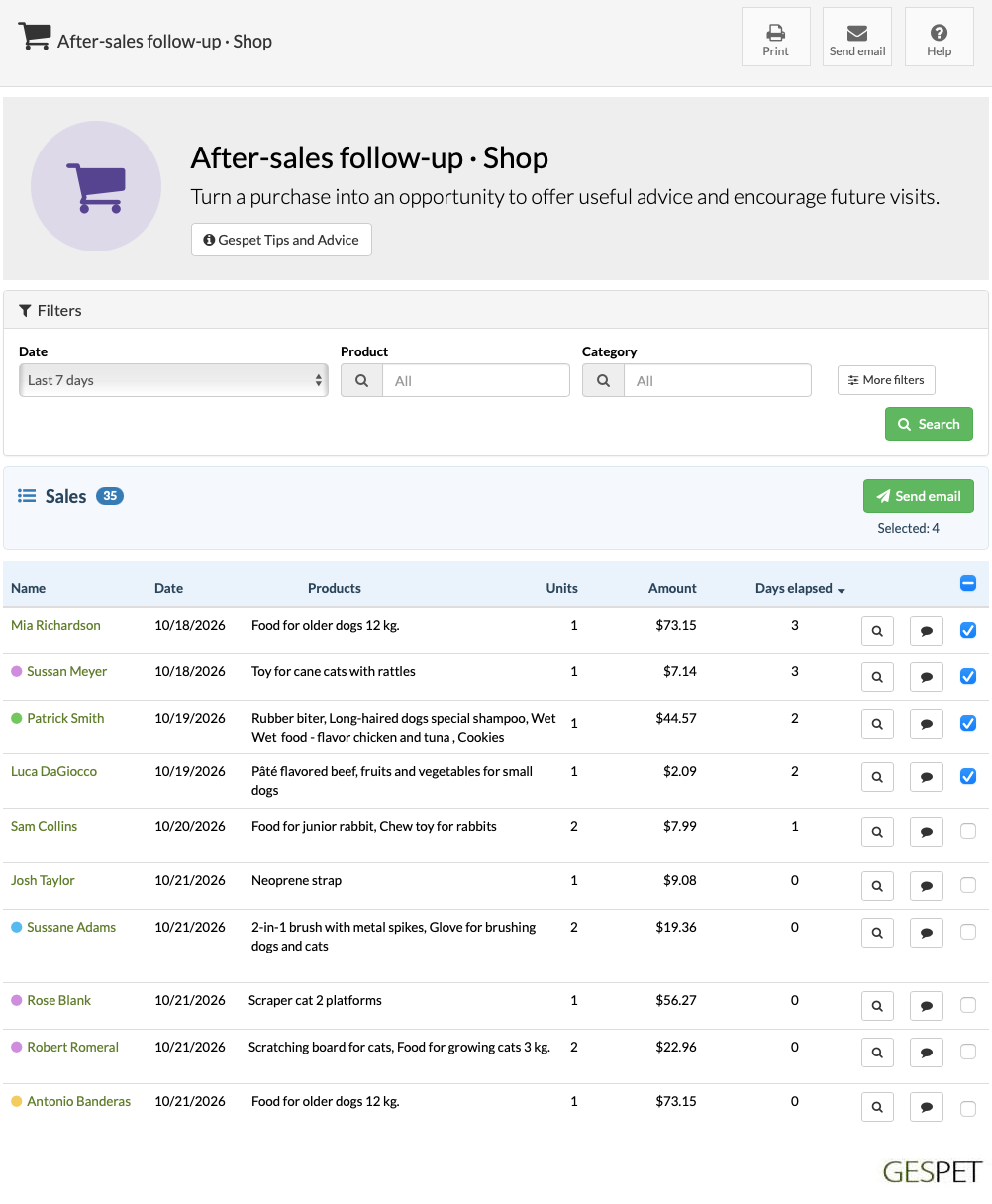
Choose what to view:
Period: choose the period you want to review. The default is the last 7 days, including today.
Custom date: enter the From and To dates. Both dates are included and the range cannot exceed one year.
Category and product: filter by a category and its subcategories, or by a product. If you choose both, the same product sold must match both filters.
Search for and select a product or category to filter the results. All are included by default.
The To date cannot be later than today.
Under More filters you can refine the search by:
Preferred language: the customer's communication language.
Status: all, active or inactive. Active customers are shown by default.
Accepts marketing messages: all, yes or no.
Click Search to apply the filters and update the list.
Your last search filters are saved for this browser session. You can open a customer’s record and return to the report without selecting them again.
Pet shop sales within the period are shown, including invoices and delivery notes.
Returns and cancelled sales are excluded.
For a mixed receipt, only the pet shop product sale is included.
You can message a customer using their contact icon, or select several results and click .
If the list spans several pages, the header checkbox lets you select results on this page or on all pages. If you select several for the same customer, they will receive an email for each one.
Results for customers without an email address cannot be selected for an email campaign. If no other contact channel is available, the direct message icon is disabled.
When you open the email form, you can write a message or use a template
configured under Marketing > Settings > Email templates >
Your email templates.
If you choose to receive a copy, you will get one for each email sent. Sending to all pages uses the filters from the last completed search.
You can sort the list by clicking column headings that support sorting.
The report shows up to 100 results per page. If the search returns more than 100 results, use pagination to view the following pages.
The summary, units and amount cover the entire selected sale, even when filtering by a product.
The original sale descriptions and amounts are retained; category filtering uses the current catalogue.
Units are displayed without decimal places. If a sale includes fractional quantities, the total is rounded for display in this report.
Days elapsed is calculated up to the search’s To date.
Click to generate a PDF that you can:
Save.
Print.
Send by email as an attachment.
The PDF and email campaigns use the filters from the last completed search, even if you have changed a form field without searching again.
Support puppies as they settle into their new homes and build trust with their families.
Bringing a puppy home often raises new questions. Staying in touch lets you support the family as the puppy settles in and answer questions about their care.
Ideas for your follow-up:
Find recent sales and use the puppy’s name to send a personal message.
Ask how the puppy is settling in and whether the family needs clarification on the care you discussed.
Use the days elapsed to plan follow-up contacts and stay in touch beyond the sale.
Consider when the puppy is due to join the family and ask how things are going at home. Practical help can reassure the family and maintain trust after the sale.
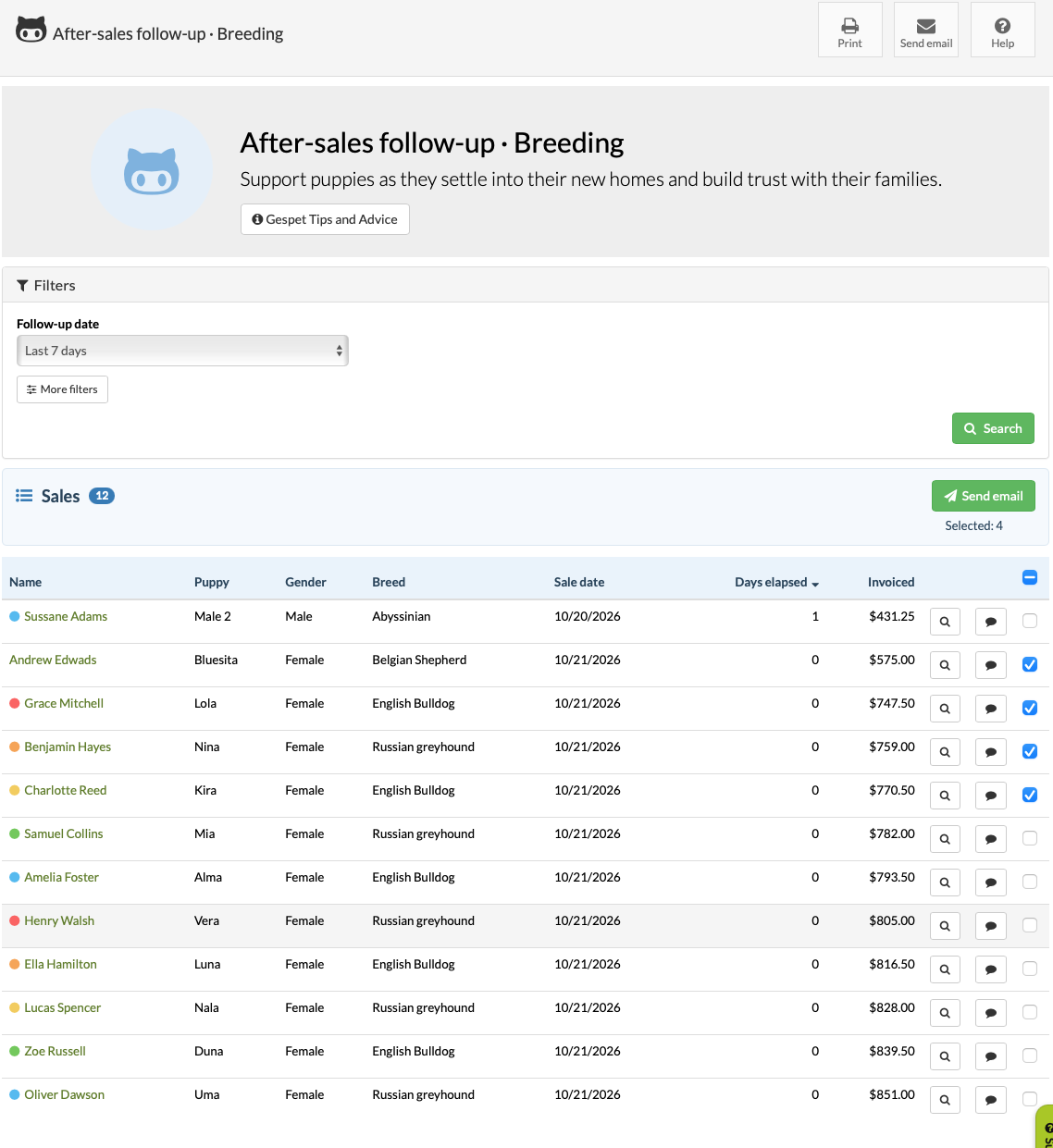
Choose what to view:
Period: choose the period you want to review. The default is the last 7 days, including today.
Custom date: enter the From and To dates. Both dates are included and the range cannot exceed one year.
The period applies to the puppy’s sale date. If you have recorded a later delivery date in Transport, that date is used instead.
The To date cannot be later than today.
Under More filters you can refine the search by:
Preferred language: the customer's communication language.
Status: all, active or inactive. Active customers are shown by default.
Accepts marketing messages: all, yes or no.
Click Search to apply the filters and update the list.
Your last search filters are saved for this browser session. You can open a customer’s record and return to the report without selecting them again.
Breeding sales are shown, including invoices and delivery notes.
If the recorded delivery date is still in the future, the sale does not appear in the report.
Bookings without a sale, returns and cancelled sales are excluded.
You can message a customer using their contact icon, or select several results and click .
If the list spans several pages, the header checkbox lets you select results on this page or on all pages. If you select several for the same customer, they will receive an email for each one.
Results for customers without an email address cannot be selected for an email campaign. If no other contact channel is available, the direct message icon is disabled.
When you open the email form, you can write a message or use a template
configured under Marketing > Settings > Email templates >
Your email templates.
If you choose to receive a copy, you will get one for each email sent. Sending to all pages uses the filters from the last completed search.
You can sort the list by clicking column headings that support sorting.
The report shows up to 100 results per page. If the search returns more than 100 results, use pagination to view the following pages.
Each row represents one sale, showing the customer, puppies’ names, sexes and breeds, sale date, days elapsed and invoiced amount. For multiple puppies, details follow the same order in each column and the amount appears only once.
Invoiced shows the total, including tax, of the current invoice linked to the document. It shows 0 if no invoice has been issued; it is neither the amount paid nor the outstanding balance.
The Transport date is the recorded date; it does not by itself confirm that delivery took place.
Days elapsed is calculated up to the search’s To date.
Click to generate a PDF that you can:
Save.
Print.
Send by email as an attachment.
The PDF and email campaigns use the filters from the last completed search, even if you have changed a form field without searching again.
Identify customers who purchased products or services during the selected period, build customer loyalty and discover new sales opportunities.
Knowing which customers buy from you and how often helps you prepare more relevant offers and nurture relationships with customers who already trust you.
Imagine being able to:
Thank your regular customers for their loyalty with a thoughtful gesture or a special offer for their next visit.
Encourage customers who visited just once during the period to return with a service package or an invitation to come back.
Introduce complementary services, such as letting boarding customers know about your grooming services.
Prepare seasonal campaigns for customers who already know your business: new activities, holiday availability or news they may find interesting.
By choosing the period, activity count and business area, you can tailor each campaign to the customers you want to reach and focus your efforts on offers that are relevant to them.
A thank-you, a useful recommendation or an invitation can help you stay in touch, encourage repeat visits and strengthen trust in your business.
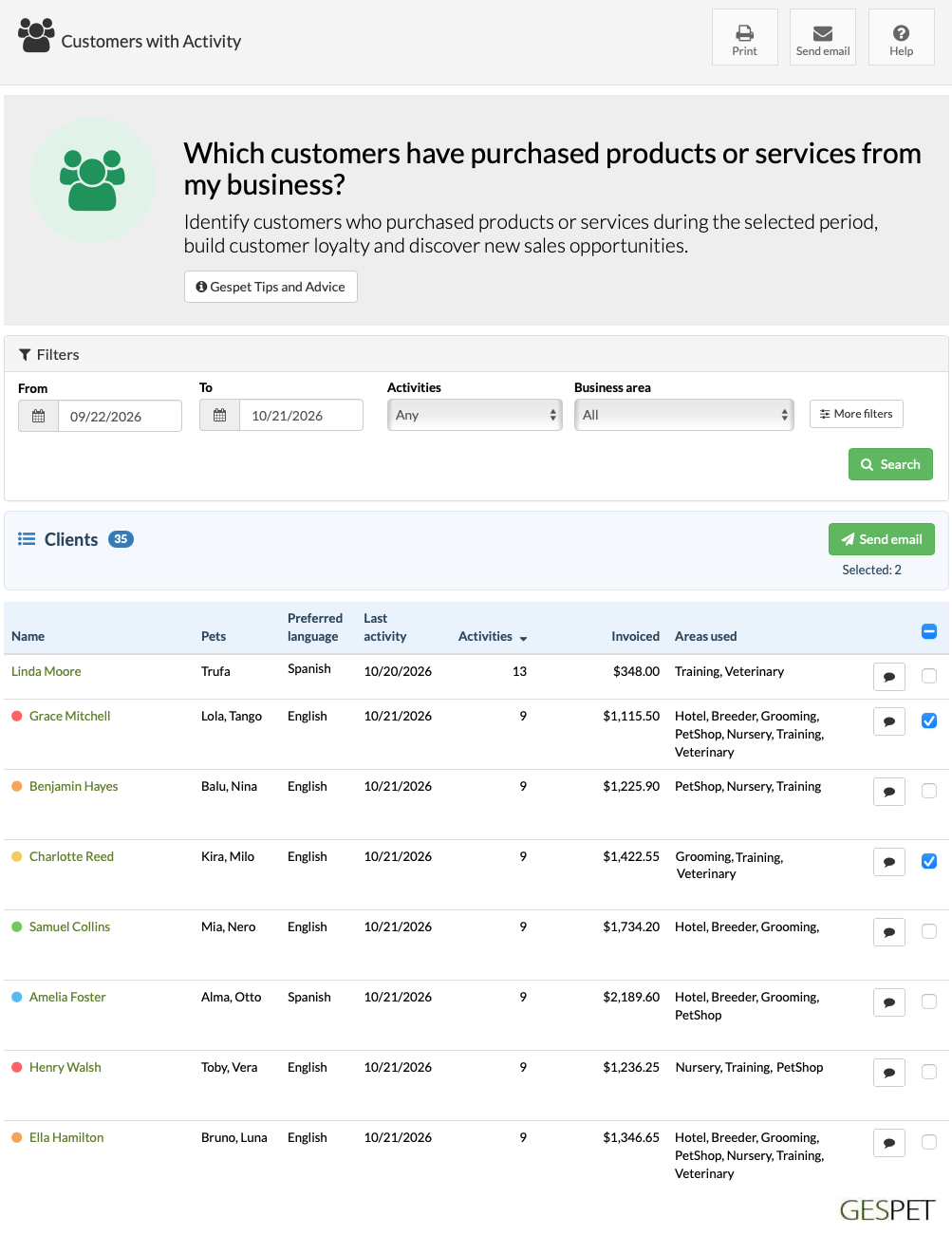
Filter customers by their activity:
Start and end dates: period you want to view.
Activities: any number, exactly one, or a minimum number.
Business area: select one or all. Only shown if you have multiple active areas.
Under More filters, you can refine the results by:
Preferred language: customer's communication language.
Status: all, active or inactive. Active by default.
Accepts marketing messages: all, yes or no.
Completed stays, services, consultations and training sessions, purchases and course enrolments count as activities. Bookings, future appointments and unfinished services do not count.
A course counts when booked, even if it hasn't been invoiced or started. Each completed session adds another activity without adding the course amount again. Invoicing the course later does not count as another activity.
The invoiced amount shows what has currently been invoiced for activities during the selected period. Shop returns do not count as activities.
Contact a customer using their contact icon, or select several and click .
If there are multiple pages, you can select customers on the current page or all pages. Each customer appears only once, even if they have multiple pets.
Customers without an email address cannot be selected for email. If no other contact method is available, the message icon is disabled.
Write a message or use a template from Marketing > Settings >
Email templates > Your email templates.
If you request a copy, you'll receive one per email sent. Sending to all pages uses the filters from your last search.
Click a sortable column heading to sort the results.
Up to 100 customers are shown per page. Use pagination to view the rest.
Click a customer's name to open their record in a new tab.
Each row shows their pets, last activity, activity count, invoiced amount and business areas. The total includes amounts invoiced to the customer across the business areas included in the search.
Click to generate a PDF that you can:
Save.
Print.
Send by email as an attachment.
The PDF and email campaigns use the filters from your last search, even if you've changed the form without searching again.
Find customers who haven’t been active during the selected period and get in touch to encourage them to return, share what’s new or rebuild their trust.
Reconnect with your customers . Just because a customer hasn’t visited for a while doesn’t mean they’ve lost interest. A friendly message and a suggestion that suits their needs can be the first step towards getting back in touch.
You could:
Introduce a new service to customers you haven’t seen for a while
Remind them of care or services their pets might need.
Ask how they’re doing and find out what you could improve to help them choose you again.
Put together an invitation or a special offer to encourage them to return.
Some customers may have stopped visiting recently, while others haven’t been back for months. Knowing the difference helps you tailor your message and decide who to contact first.
You already know each other. Build on that relationship to restart the conversation, strengthen their trust and encourage more visits.
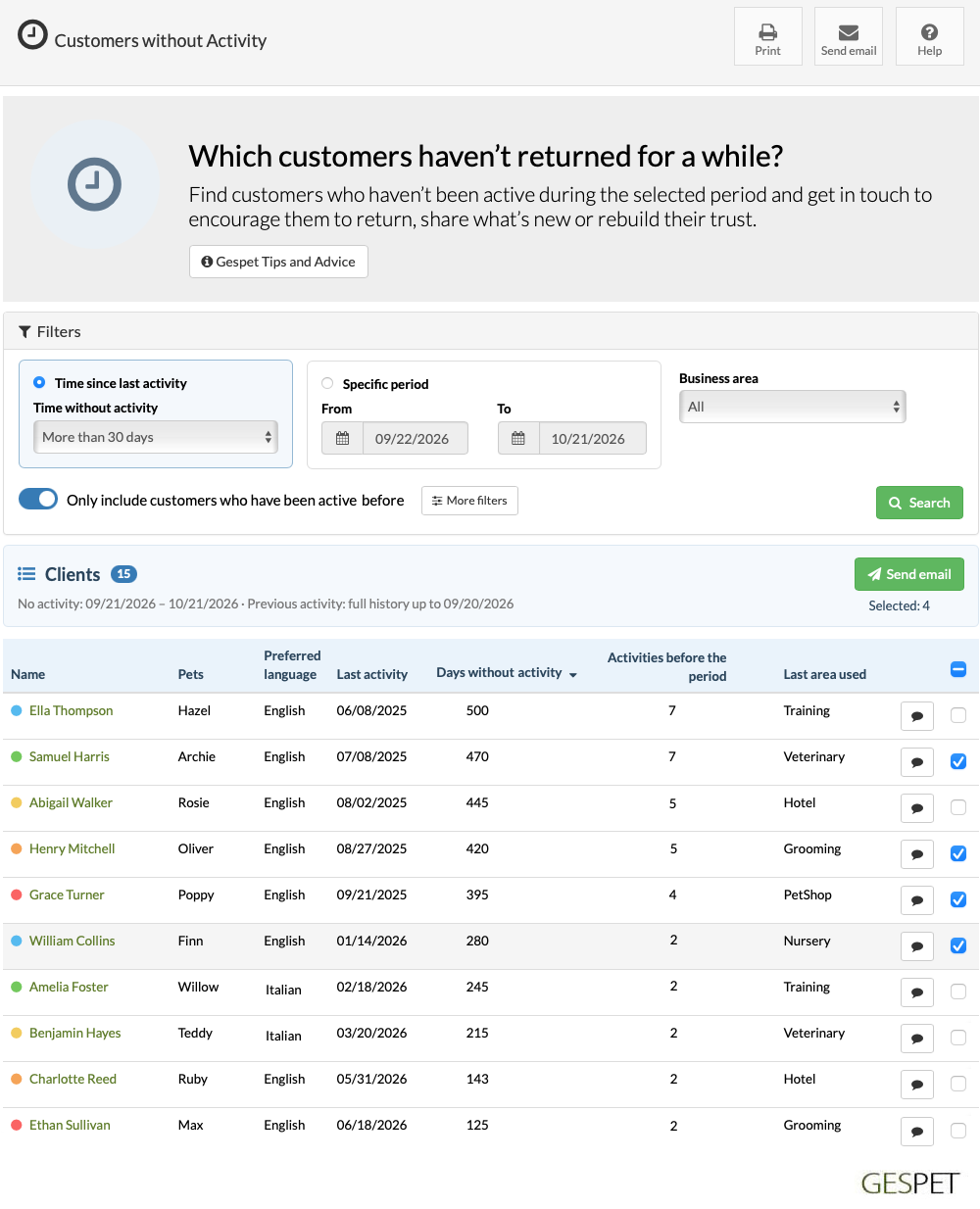
Choose a search mode:
Time since last activity: choose how long it must have been since their last activity. Use a preset duration or select Custom and enter a number of days, months or years. By default, the report looks for customers with more than 30 days of inactivity.
Specific period: enter the From and To dates to find customers with no activity between them. Both dates are included.
Only include customers who have been active before: enabled by default to help you find customers who might return. Customers must have had some activity before the spell of inactivity you’re checking. Turn it off to also include customers who have never used your business.
Business area: this filter only appears when you have more than one active business area. It lets you filter the results for a specific area or view all areas.
Under More filters, you can choose preferred language, customer status and consent to marketing messages. Active customers are shown by default.
Click Search to apply the filters and update the list.
Commercial activity includes completed stays and services, finished consultations, purchases, courses customers have signed up for and completed training sessions. A course counts when the customer signs up, even if it has not been invoiced and no sessions have taken place.
Reservations, future appointments and unfinished services do not count. A Store refund does not end inactivity or meet the previous activity requirement either.
Previous activity is always checked before inactivity began. If you turn off that requirement, customers with no recorded activity may appear. When you search a specific period, customers with no activity between those dates will appear even if they returned later.
You can message one customer using their contact icon, or select several customers and click .
If the list spans several pages, the header checkbox lets you select customers on this page or on all pages. Each customer appears only once, even if they have several pets.
Customers without an email address cannot be selected for an email campaign. If no other contact channel is available, the direct message icon is disabled.
When you open the email form, you can write a message or use a template
configured under Marketing > Settings > Email templates >
Your email templates.
If you choose to receive a copy, you will get one for each email sent. Sending to all pages uses the filters from the last completed search.
You can sort the list by clicking column headings that support sorting.
The report shows up to 100 customers per page. If the search returns more than 100 results, use pagination to view the following pages.
Click a customer’s name to open their record.
Alongside their pets and language, you can see when they were last active, how many days they have been inactive and which business area they last used. For a specific period, days are counted up to the To date, not today.
Previous activities are those that took place before the period of inactivity you’re checking. They are all counted, whether or not the previous activity switch is on.
If there is no earlier activity on record, the report shows No activity recorded, with zero previous activities and no last activity date or number of inactive days.
Click to generate a PDF that you can:
Save.
Print.
Send by email as an attachment.
The PDF and email campaigns use the filters from the last completed search, even if you have changed a form field without searching again.
Identify customers whose activity has declined and reach out to strengthen your relationship.
Keep the relationship strong as visits become less frequent. A customer who visits less often still chooses your business. Spotting that change gives you a chance to listen, understand their current needs and encourage them to keep coming back.
Imagine being able to:
Give priority to regular customers who are visiting less often and offer them more personal attention.
Restart the conversation to find out how they are and whether their needs have changed.
Suggest their next visit or remind them of services they may find useful.
Share something new or a tailored offer that gives them a reason to visit more often.
You can start with customers who used to visit regularly and whose activity has dropped the most. This helps you decide who to contact first and prepare a more relevant message.
Fewer visits may reflect a change in routine, the time of year or new needs. A friendly message can help you understand why, without assuming there is a problem.
Build on the relationship you still have to strengthen their trust and encourage their next visit.
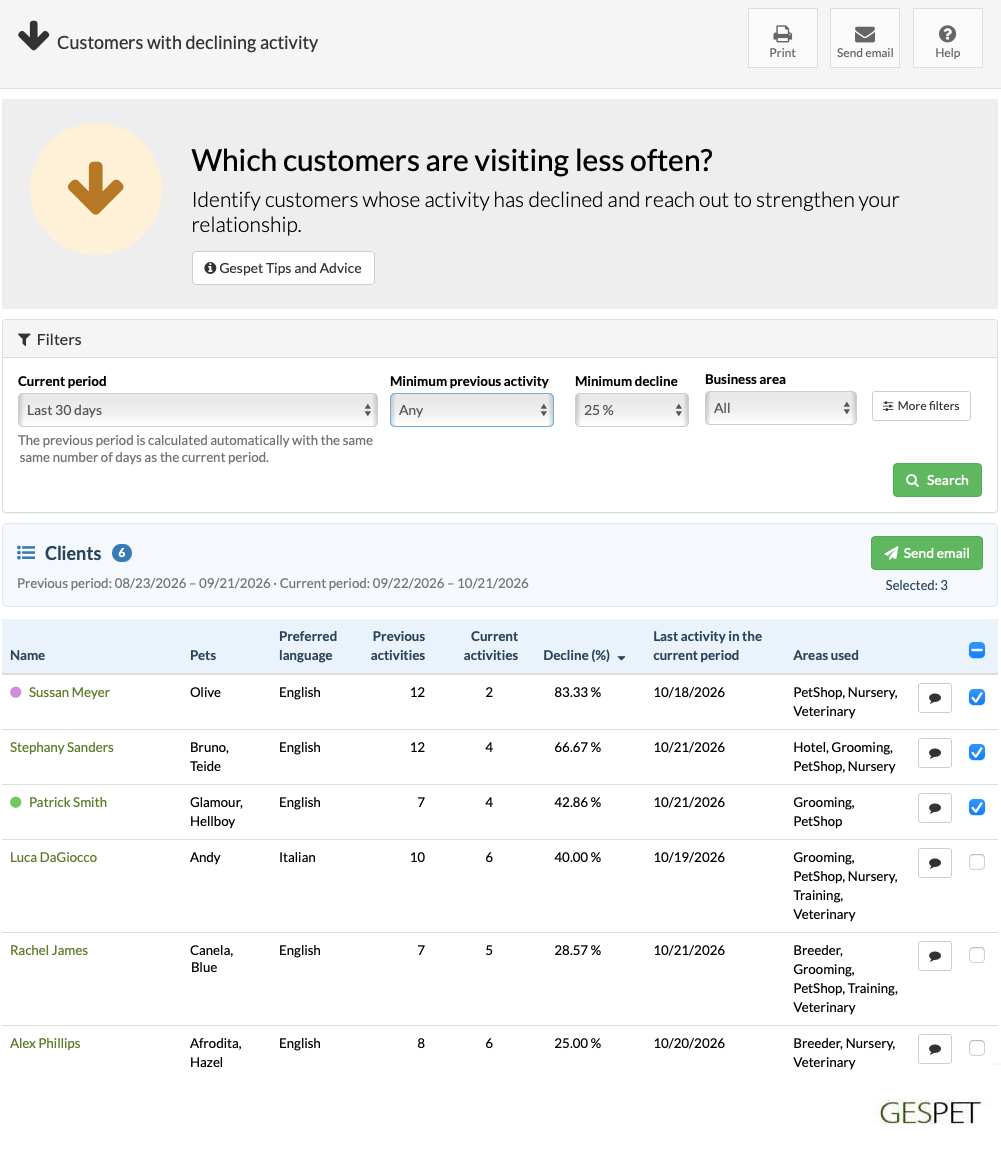
Current period: choose when you want to identify a decline. It is automatically compared with the immediately preceding period of the same length.
Minimum previous activity: focus on customers who previously had a certain level of activity.
Minimum decline: set how much a customer’s activity must have decreased to appear in the report.
Business area: this filter only appears when you have more than one active business area. It lets you filter the results for a specific area or view all areas.
Under More filters, you can refine your search by preferred language, status and consent to marketing communications. Active customers are shown by default.
The report counts each customer’s business transactions in both periods, not the number of invoices.
The decline percentage shows how much activity has decreased compared with the previous period. For example, going from 8 activities to 6 is a 25% decline.
To appear in the report, a customer must have activity in both periods and meet the selected minimum decline. Customers with no activity in the current period can be found in Customers without activity.
Shop returns neither increase nor decrease the activity count.
A booked course counts even if it has not yet been invoiced and no sessions have taken place. Each completed session counts as an additional activity.
You can message one customer using their contact icon, or select several customers and click .
If the list spans several pages, the header checkbox lets you select customers on this page or on all pages. Each customer appears only once, even if they have several pets.
Customers without an email address cannot be selected for an email campaign. If no other contact channel is available, the direct message icon is disabled.
When you open the email form, you can write a message or use a template
configured under Marketing > Settings > Email templates >
Your email templates.
If you choose to receive a copy, you will get one for each email sent. Sending to all pages uses the filters from the last completed search.
You can sort the list by clicking column headings that support sorting.
The report shows up to 100 customers per page. If the search returns more than 100 results, use pagination to view the following pages.
Each row shows previous and current activities, the decline percentage and the last activity in the current period. The areas used include those from both periods, within the applied filter.
The dates of both periods appear below the customer count. Click a customer’s name to open their record.
Click to generate a PDF that you can:
Save.
Print.
Send by email as an attachment.
The PDF and email campaigns use the filters from the last completed search, even if you have changed a form field without searching again.
Find customers who have returned after a period of inactivity and build on their return to encourage loyalty.
Give returning customers a reason to keep coming back. When a customer comes back after some time away, you have a fresh opportunity to strengthen the relationship. Use that contact to understand their current needs and those of their pet, offer a personal welcome and make their next visit easier.
Imagine being able to:
Offer a more personal welcome that shows you remember the customer and their pet.
Follow up to find out how their visit went and whether they need anything else.
Recommend a suitable service or product based on what they needed when they returned.
Suggest their next visit when appropriate, helping them keep up with their pet’s care.
See who is visiting regularly again and who might appreciate a little more personal attention.
You can start with the most recent returns and tailor your message to the service used or purchase made. A thank-you, a useful recommendation or a timely reminder can help you stay in touch.
You do not always need to offer a discount: remembering their preferences and taking an interest in their pet can also give them reasons to keep choosing your business.
Help them feel welcome and make their next visit easy to arrange.
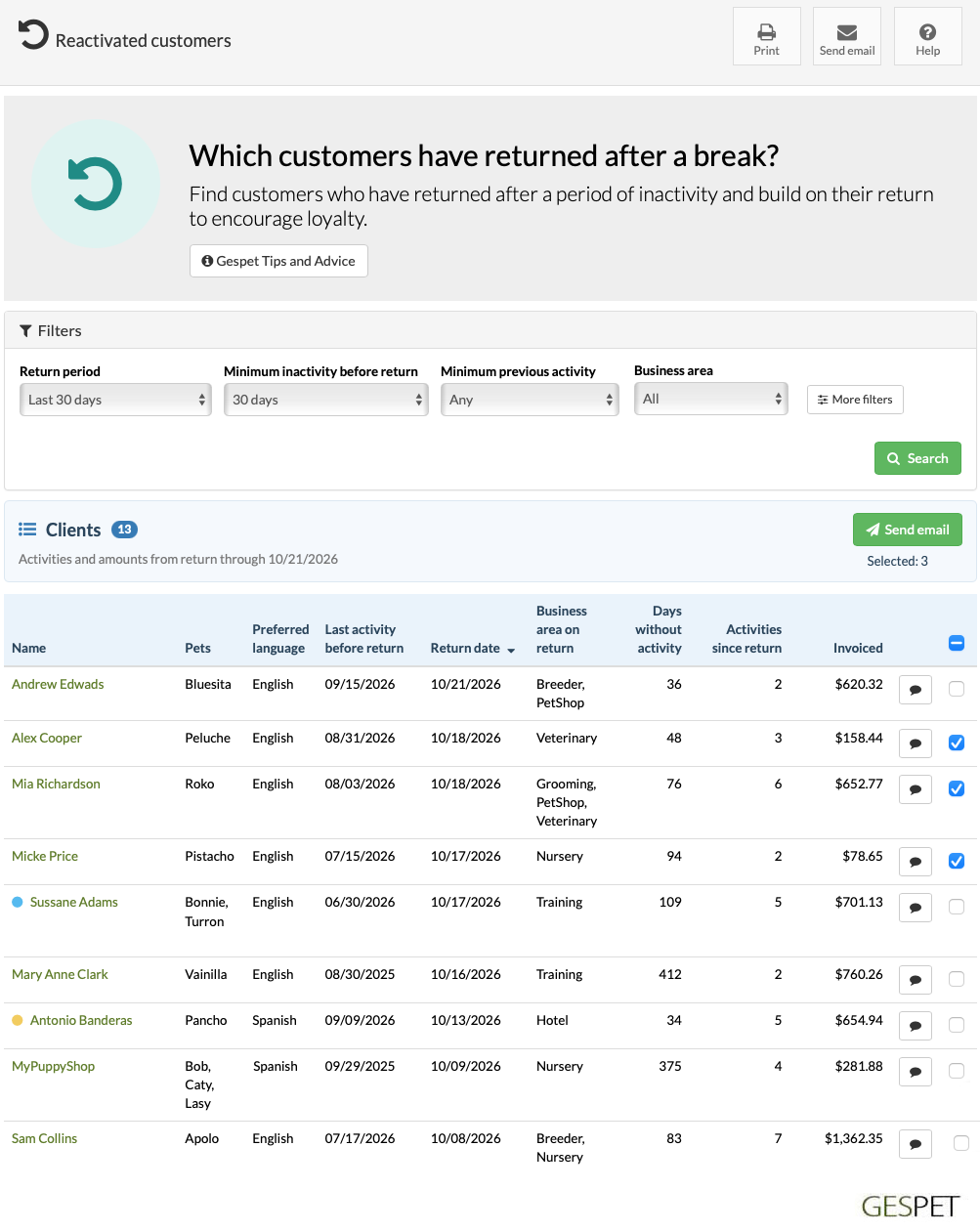
Return period: choose the period in which you want to find customers who returned after a spell without activity.
Minimum inactivity before return: set how long a customer must have been inactive before returning. You can choose a preset duration or enter a custom number of days or months.
Minimum previous activity: focus on customers who had already completed a certain number of activities before returning.
Business area: this filter only appears when you have more than one active business area. It lets you filter the results for a specific area or view all areas.
Under More filters, you can refine your search by preferred language, status and consent to marketing communications. Active customers are shown by default.
A customer is considered recovered when they become active again after a break at least as long as the one you selected. Their return must fall within the selected period.
They must have been active before: a first visit does not count as a return. The report checks the full history of the selected areas, including activities before the chosen period.
If a customer returned several times after breaks that meet the filter, the report shows their latest qualifying return within the period. Several transactions on the same day do not create a break between them.
Shop returns do not interrupt the break, count as a customer return or add to the activity count.
A booked course does count as activity, even if it has not yet been invoiced and no sessions have taken place.
You can message one customer using their contact icon, or select several customers and click .
If the list spans several pages, the header checkbox lets you select customers on this page or on all pages. Each customer appears only once, even if they have several pets.
Customers without an email address cannot be selected for an email campaign. If no other contact channel is available, the direct message icon is disabled.
When you open the email form, you can write a message or use a template
configured under Marketing > Settings > Email templates >
Your email templates.
If you choose to receive a copy, you will get one for each email sent. Sending to all pages uses the filters from the last completed search.
You can sort the list by clicking column headings that support sorting.
The report shows up to 100 customers per page. If the search returns more than 100 results, use pagination to view the following pages.
The row shows the last activity before the break, how many days the customer was inactive and the date they returned.
Business area on return shows the business areas in which the customer was active on the day they returned. It may show several if they used more than one that day.
Activities and amounts are counted from that return through to the end of the chosen period.
The invoiced amount shows the amount currently invoiced for those activities.
The report shows who returned and when, but does not establish whether they returned because of a campaign or for another reason.
Click to generate a PDF that you can:
Save.
Print.
Send by email as an attachment.
The PDF and email campaigns use the filters from the last completed search, even if you have changed a form field without searching again.
Displays a complete list of all customers segmented by their location (where they live)
TIPS AND INSIGHTS FROM GESPET
Did you know?
The geographic customer segmentation list gives you useful visibility to better guide your marketing actions.
By knowing which areas or towns show the most interest in your business, you can quickly identify where your best growth opportunities are.
This information helps you make smarter decisions: for example, launching specific campaigns for certain areas, adapting your message by location, or identifying where there may be demand for new services.
Understanding where your customers come from helps you focus your marketing efforts with greater precision.
That way, you not only optimize time and resources, but also increase your chances of attracting new customers where real interest already exists.
You can use filters to customize the list:
From which locality
From which province
By postal code
From which country
By preferred language
This way, you can search for customers from a specific location and send them, for example, a promotional email or an email with relevant information.
The charts feature intelligent, multidimensional analytics, providing advanced data visualization from multiple perspectives. They automatically adapt to your selected filters and displayed results, revealing the insights most relevant to your analysis.
When you filter customers by province, city, or postal code, the charts dynamically update to provide more detailed insights into customer distribution within the selected area.
Hover over any section of a chart to explore additional details and gain deeper insights into the data.
You can hide the charts at any time by collapsing the panel at the top.
You can click on the Start conversation icon to send an email or a WhatsApp message to a customer.
You can also select multiple customers to run an email campaign, meaning sending an email to several customers at the same time.
You just need to select the customers you want to send the message to and click the button
You can write the message yourself or select a template that you have
previously configured in the option Marketing > settings > your
email or WhatsApp templates.
Load the template content and make any changes you need for this
specific sending, but don’t worry because this will not modify the original
template.
In the case of mailing or sending to multiple users at the same time,
if you click on Send me a copy, you will receive a copy in
your
email.
By clicking on the customer's name, you can open that information in a new browser tab.
By clicking on the , button, a .pdf file is generated that you can:
Save
Send directly by email, for example, to your marketing department.
If you select the option to receive a copy, you will receive a copy of every email sent. For example, if you send 200 emails, you will receive 200 copies, so a total of 400 emails will be sent.
Displays a complete list of all animals segmented by various aspects: Sex, Breed, Age, and Sterilization.
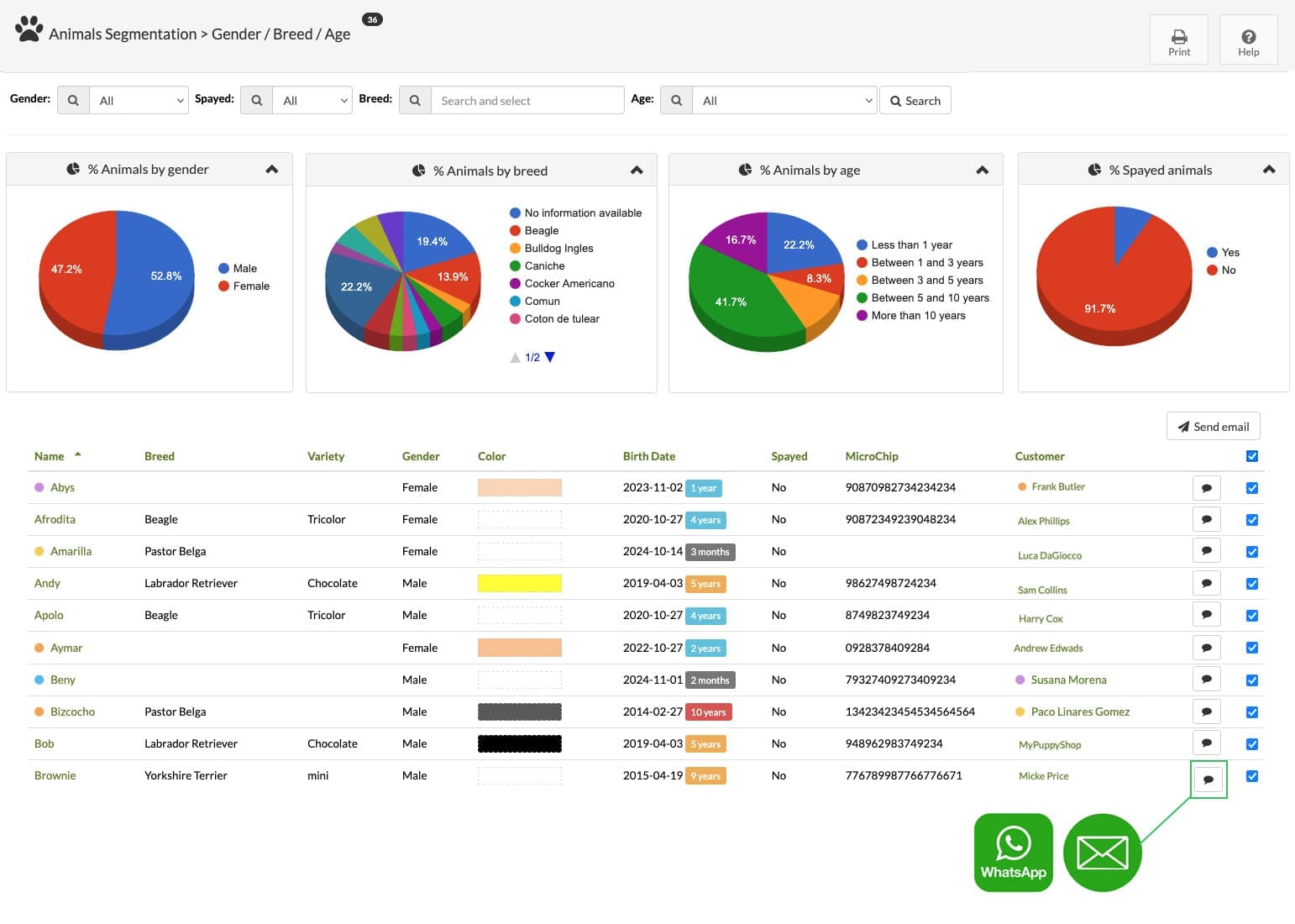
Informe de segmentación de animales
TIPS AND INSIGHTS FROM GESPET
Did you know?
Segmenting pets by gender, breed, or age lets you run much smarter and more relevant marketing for your customers.
When your campaigns are based on the real characteristics of each pet, your messages stop being generic and become useful, timely recommendations.
Imagine being able to:
Send socialization course content to puppy owners.
Recommend specific nutrition for senior pets.
Launch promotions tailored to certain breeds or needs.
This type of communication shows that you truly know your customers and genuinely care about their pets' well-being.
When you use pet data strategically, every campaign becomes an opportunity to provide real value and drive your business growth.
Use filters to customize your list and find pets based on specific criteria, such as breed, sex, age, and more. You can then send their owners targeted emails, such as special offers tailored to their pets.
The charts feature intelligent, multidimensional analytics, providing advanced data visualization from multiple perspectives. They automatically adapt to your selected filters and displayed results, revealing the insights most relevant to your analysis.
When you filter pets by breed, sex, or other characteristics, the charts dynamically update to display detailed insights specific to your selection.
Hover over any section of a chart to explore additional details and gain deeper insights into the data.
You can hide the charts at any time by collapsing the panel at the top.
You can click on the Start conversation icon to send an email or a WhatsApp message to a customer.
You can also select multiple customers to run an email campaign, meaning sending an email to several customers at the same time.
You just need to select the customers you want to send the message to and click the button
You can write the message yourself or select a template that you have
previously configured in the option Marketing > settings > your
email or WhatsApp templates.
Load the template content and make any changes you need for this
specific sending, but don’t worry because this will not modify the original
template.
In the case of mailing or sending to multiple users at the same time,
if you click on Send me a copy, you will receive a copy in
your
email.
By clicking on the customer's and pet's name, their profile will open in a new browser tab.
By clicking on the , button, a .pdf file is generated that you can:
Save
Send directly by email, for example, to your marketing department.
If you select the option to receive a copy, you will receive a copy of every email sent. For example, if you send 200 emails, you will receive 200 copies, so a total of 400 emails will be sent.
View a complete list of all pets and segment them by their socialization profiles, activity levels, personality, behavior, handling requirements, and special needs.
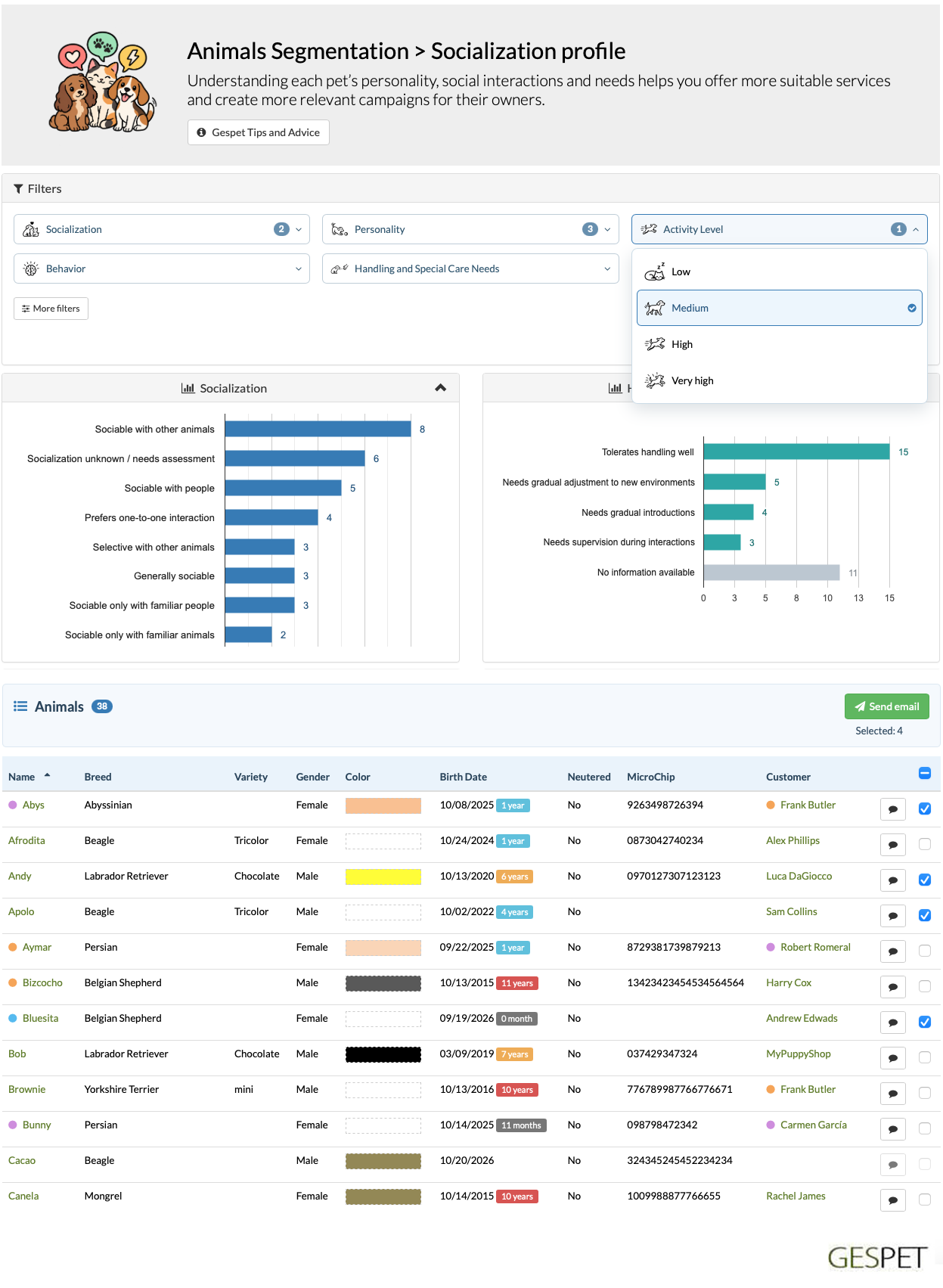
Email marketing: animal segmentation
Every pet has a unique personality, behavior, activity level, and individual needs. Understanding these characteristics allows you to create much more personalized, relevant, and effective marketing campaigns, offering each client services, products, and experiences that truly match their pet's needs.
Imagine being able to:
Promote socialization classes to owners of shy, insecure dogs or those who struggle to interact with other animals.
Offer personalized dog training sessions for pets with behavioral issues, separation anxiety, or handling difficulties.
Recommend specific activities and services for highly active, energetic dogs or those who need additional physical and mental stimulation.
Promote gentle activities or tailored services for sensitive, less active pets or those who thrive in calmer environments.
Offer specialized grooming services to owners of nervous, fearful pets or those requiring extra care and gentle handling.
Highlight individualized care services for pets with special needs, physical limitations, or specific care requirements.
Organize group activities and experiences for sociable pets that get along well with other animals and enjoy interacting with them.
This type of segmentation takes your marketing far beyond generic campaigns. It's not just about sending promotions; it's about offering each client something genuinely useful and relevant to their pet.
Targeted campaigns also tend to generate better engagement because your message reaches the right people at the right time.
By tailoring your communications to owners whose pets share specific characteristics or needs, you increase your chances of capturing their interest, improving campaign performance, and unlocking new business opportunities.
Your clients will see that you know their pets, understand their needs, and genuinely care about their well-being. This builds trust, strengthens customer loyalty, and helps create lasting relationships.
Turn what you know about every pet into opportunities to deliver better services, create more effective marketing campaigns, and grow your business.
The charts feature intelligent, multidimensional analytics, providing advanced data visualization from multiple perspectives. They automatically adapt to your selected filters and displayed results, revealing the insights most relevant to your analysis.
For example, when you filter pets by their behavior, personality, or other characteristics, the charts dynamically update to display information specific to your selection.
Hover over any section of a chart to explore additional details and gain deeper insights into the data.
You can hide the charts at any time by collapsing the panel at the top.
Displays a list of all customers who have a birthday within the selected date range
TIPS AND INSIGHTS FROM GESPET
Did you know?
Wishing your client a happy birthday is a small gesture with a powerful emotional impact.
It shows care, attention and genuine warmth beyond a transactional relationship. These messages:
Strengthen the emotional bond: The customer feels that your business remembers them on an important day.
Differentiate your brand: Not every business takes the time for these details, positioning you as thoughtful and customer-focused.
Keep the connection alive: Even without an upcoming appointment, your business stays present in their mind.
Encourage return visits: You can include a special offer or exclusive benefit to inspire them to come back.
Details create memories - and memories create preference for your business.
If you hover over the chart, you will see extended information about each data segment.

Hide them:
You can hide or collapse them by clicking the icon
You can click the Start conversation icon to send a birthday greeting by email or WhatsApp to that customer.
You can also select multiple customers to run an email campaign, meaning sending an email to multiple customers at the same time.
You just need to select the customers you want to send the message to and click the button
By default, the template that you previously configured in the option Marketing
> settings > occasional email or WhatsApp templates. of the type
Customer birthday greeting will appear.
Load the content of the template and you can make the modifications
you need for this sending, but don't worry because this will not modify the
original template.
In the case of mailing or sending to multiple users at the same time, if you
click on Send me a copy, you will receive a copy in your
email.
Clicking on the customer's name will open their profile in a new browser tab.
When you click the button , a .pdf file is generated that you can:
Save
Send by email directly, for example to the accounting department.
If you select the option to receive a copy, you will receive a copy of every email sent. For example, if you send 200 emails, you will receive 200 copies, so a total of 400 emails will be sent.
Displays a list of all pets whose birthdays fall within the selected date range
Pets are part of the family, and acknowledging their birthday shows sensitivity and understanding of the special bond between the customer and their pet. This type of message:
Strengthens the emotional connection: The customer feels that you understand how important their pet is in their life.
Reinforces your position as a specialist: You do not just provide services, you care for their companion.
Increases loyalty: This type of personalised attention creates the feeling of exclusive treatment.
Creates natural opportunities for a visit: You can include the message with an invitation to a special session, check-up, grooming appointment or a small commemorative gift.
When you celebrate the pet, you are strengthening the bond with the whole family.
If you hover over the chart, you will see expanded information for each data segment.
Hide them:
You can hide or collapse them by clicking the icon
You can click on the Start conversation icon to send a birthday greeting by email or WhatsApp to that customer.
You can also select multiple entries to create an email campaign, that is, send one email to multiple customers at the same time.
You just need to select the customers you want to send it to and click the button
By default, the template from the ones you have
previously configured in the option Marketing > Settings >
one-off email or WhatsApp templates. of the type
Pet birthday greeting
will appear.
It loads the content of the template and you can make any changes
you
need for this send, but do not worry because this will not modify
the original template.
In the case of a mailing or sending to multiple users at the same time, if
you click
on Send me a copy, you will receive a copy in your
email.
You can sort by clicking on the table heading:
More information about search tools and sorting:
More informationClicking on the pet’s name will open its record in a new browser tab.
When you click the button, a .pdf file is generated that you can:
Save
Send directly by email, for example to the accounting department.
If you select the option to receive a copy, you will receive a copy of every email sent. For example, if you send 200 emails, you will receive 200 copies, so a total of 400 emails will be sent.
TAGS:
CRM for pet businesses | Marketing for pet stores | Send WhatsApp to customers | Personalized pet communication | Email marketing for pets | Pet customer management | Pet customer tracking | Pet customer loyalty | Pet marketing automation |
Related posts:
Configure and use email templates