Retail, Trade and Member Prices: Organize Your Pet Shop Catalog with Gespet
Your pet shop might sell the same bag of food to a family, a pet care professional or a member of your buying club, with a different price for each. Keeping that offering organized helps you find the right product entry when making a sale, with the price already set.
With Gespet, you can do this using categories, subcategories and product codes. It is a practical way to make the most of your POS system's flexibility, keeping retail, trade and member-priced products organized within one catalog.
Gespet pet shop software is packed with useful tools. Here, we will focus on a simple but powerful idea: create a product entry for each group, with its own category, code and selling price. Let us walk you through it.
One product, three entries that are easy to tell apart
Imagine you sell Royal Canin puppy food for large breeds in a 15 kg bag. You want to offer it at €35 to trade customers, €42 to retail customers and €39.90 to members of your buying club. Here is how to organize those three options in Gespet.
We will use three main categories: PROFESSIONALS, CUSTOMERS and MEMBERS. Within each, we will create the subcategories we need, such as Food > Dogs, and add the product with its price.
To distinguish the entries, we will also use the product Code field:
PRO001 for our trade customers, CLI001 for retail customers
and SOC001 for members. The name describes the product, while the code
helps identify which group it belongs to.
Prices and codes are illustrative examples to show how the catalog can be organized.
Step 1. Create the main categories
Start with the three main sections you want to see in your catalog:
Go to
New > Category/Subcategory.Enter CUSTOMERS as the name. Since this is a main category, leave the parent category unselected.
You can add a description and choose an icon or photo to make it easy to recognize. Save the category.
Repeat the process to create PROFESSIONALS and MEMBERS, again without selecting a parent category.
You choose the names. In this example, CUSTOMERS contains the entries for retail sales, PROFESSIONALS holds those for sales to other businesses, and MEMBERS is for your buying club.
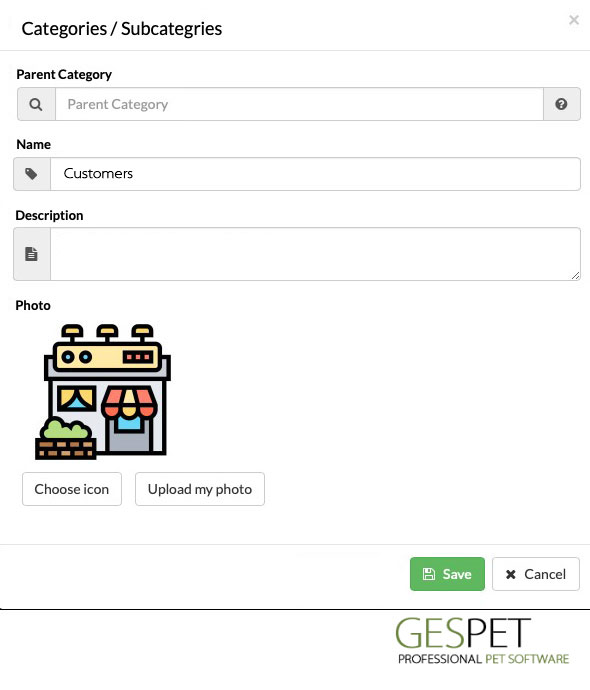
Create the main category without selecting a parent category.
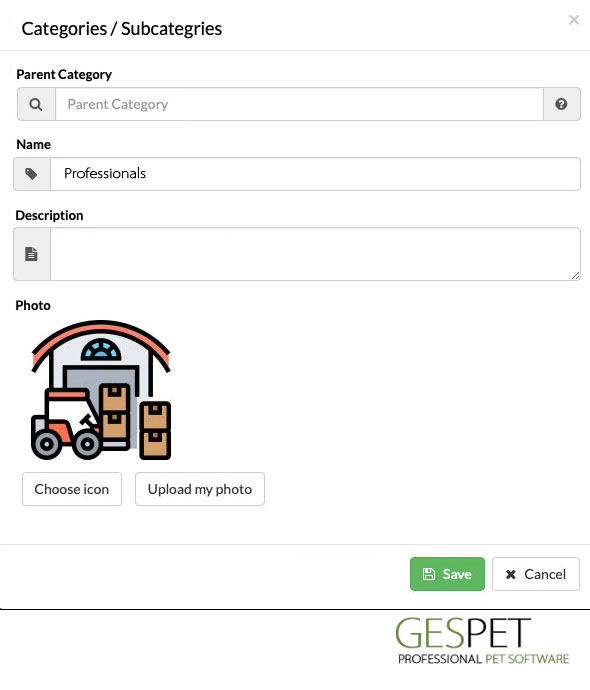
Repeat the process for Professionals and, if you run a buying club, Members.
Step 2. Organize subcategories under CUSTOMERS
Under CUSTOMERS, we will create Food, Hygiene and Beds. This lets you browse by product type before choosing the specific item.
Go back to
New > Category/Subcategory.This time, select CUSTOMERS as the parent category.
Enter Food as the name and save.
Repeat the same steps for Hygiene and Beds, selecting CUSTOMERS as the parent category for both.
Want to organize food by species too? Create another subcategory, select Food under CUSTOMERS as its parent and name it Dogs. Repeat the process for Cats.
For example, to find dog food, you would follow this path:
CUSTOMERS > Food > Dogs
You can create as many categories and subcategories as you need. Organize them by species, product type or whatever structure works best for your team. You are not limited to the groups in this example.
Step 3. Set up PROFESSIONALS and MEMBERS
Now repeat the process under PROFESSIONALS. Create Food, Hygiene and Beds with PROFESSIONALS as their parent category. Then add Dogs and Cats under its Food subcategory.
For your buying club, do the same starting from MEMBERS. Each time you add a category, check that you have selected the parent from the correct group.
| Type of sale | Example catalog path |
|---|---|
| Retail | CUSTOMERS > Food > Dogs |
| Trade | PROFESSIONALS > Food > Dogs |
| Members | MEMBERS > Food > Dogs |
The three structures do not have to be identical. You might offer trade customers different products or pack sizes, or reserve certain items for members. You decide how to organize each part of your offering.
Step 4. Add the product with its code and price in each group
With the categories ready, we can create three entries for the same bag of food. Each keeps the same name and pack size; the code, category and selling price change.
Go to
New > Product.Enter Royal Canin Puppy Food for Large Breeds 15 kg as the name and PRO001 in the Code field.
Select PROFESSIONALS > Food > Dogs, set the selling price to €35 and save the product.
Create another entry with the same name and pack size, code CLI001, category CUSTOMERS > Food > Dogs and a price of €42.
Add the third entry with code SOC001, category MEMBERS > Food > Dogs and a price of €39.90.
| Group | Code | Selling price |
|---|---|---|
| PROFESSIONALS | PRO001 | €35.00 |
| CUSTOMERS | CLI001 | €42.00 |
| MEMBERS | SOC001 | €39.90 |
Categories help you browse; codes help you identify. You can follow the same convention for other products: PRO002, CLI002 and SOC002, for example. It is a simple way to help everyone on your team recognize the entries.
Step 5. Choose the right product entry when making a sale
Go to New > Sale. Depending on the sale you are making, open
CUSTOMERS, PROFESSIONALS or MEMBERS and browse to the product's subcategory.
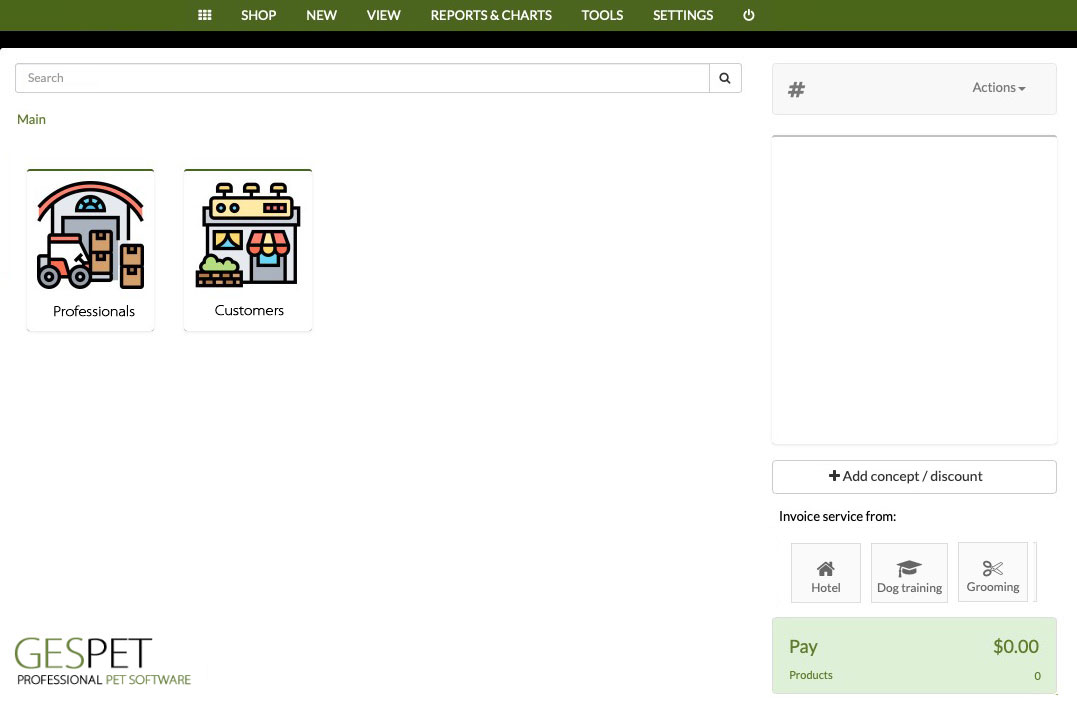
The screenshot shows Customers and Professionals; you can also create a Members category using the same steps.
When you open PROFESSIONALS, for example, you will see its subcategories. Select Food, then Dogs, and add PRO001 to the sale. In this example, its price is €35.
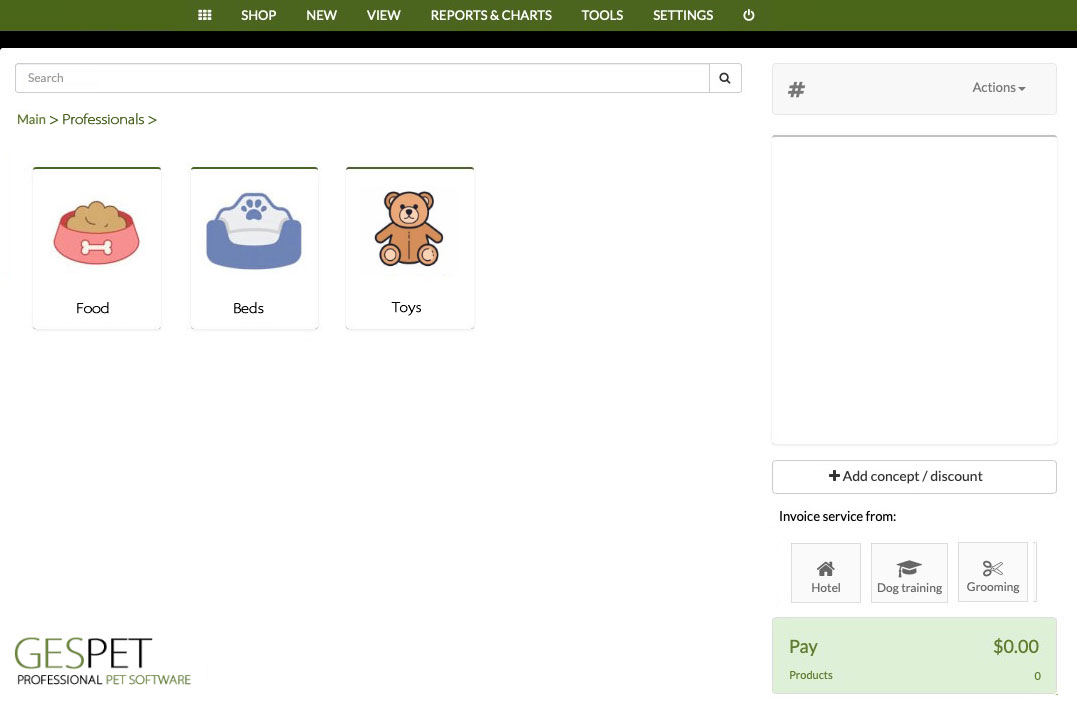
Subcategories lead you to the products in each group. This screenshot illustrates Food, Beds and Toys; choose the categories that suit your store.
For a retail customer, use CLI001 from CUSTOMERS at €42. For a club member, select SOC001 from MEMBERS at €39.90. Before completing the sale, check the codes, quantities and prices of the selected items.
Your prices are already set in the product entries, so you can choose the right one for each sale using a clear, visual catalog structure.
A clear catalog and more tools for your pet store
This is just one way to use Gespet to organize your catalog around your business. Alongside categories and codes, you have inventory management, bulk stock and price updates, batch expiry tracking, and special and promotional prices.
A powerful solution for the daily running of your pet shop, whether you sell to individual customers, supply other pet businesses or run a buying club.
For the reference walkthrough, see our practical guide to organizing wholesale and retail pet product sales.
Discover how straightforward selling can be with a catalog organized for each type of sale. Try Gespet and explore the tools for your store.
Already using Gespet Pet Shop? You can apply this structure to your products. If you would like some guidance, tell us how you sell.
1 . How can I organize retail and trade sales in my pet store?
2 . Can I offer different prices to regular customers or club members in my pet shop?
3 . Can I set up the same product to sell at different prices?
4 . How can I organize products with member prices in my pet store POS?
5 . Can I create subcategories by species or product type?
6 . What are the codes PRO001, CLI001 and SOC001 used for in the example?
Did you find it interesting?
If you have any questions, you want to propose that we write a help guide or a post on a topic or you just want to chat with us, don't hesitate. We are delighted to talk with you and get your opinion.